
Create the Orchestra integration channel
- Navigate to the Team in Microsoft Teams where you would like to set up an activity feed of Orchestra
- Create a new channel for the Orchestra integration by clicking the three dots next to your Team > Add channel
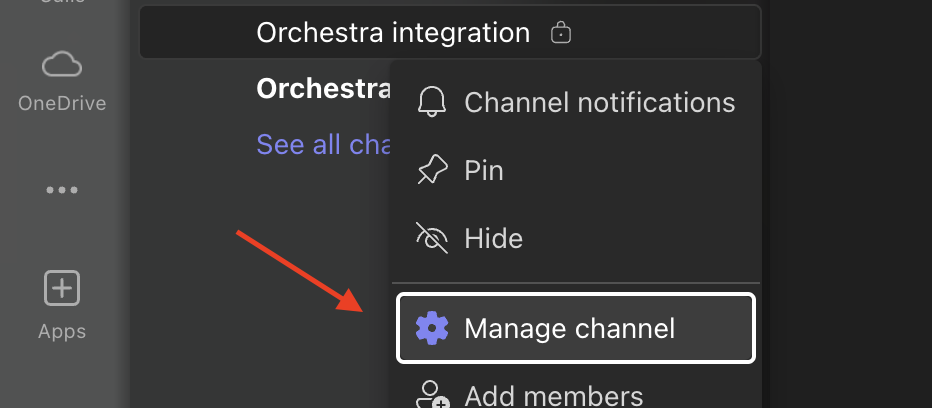
- Click the three dots next to the channel > Manage channel
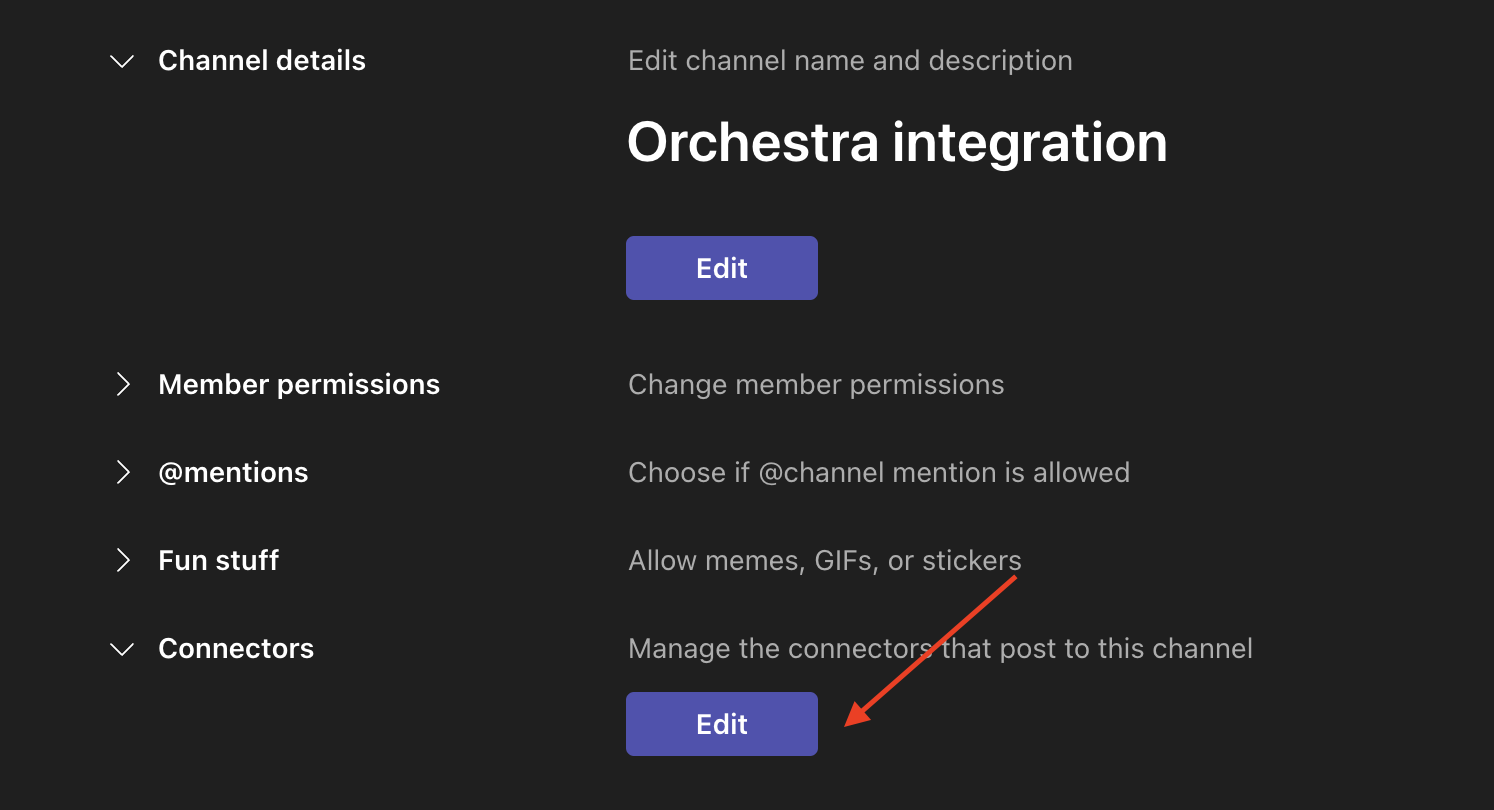
- Click on the Settings tab > open the Connectors section > Edit
If the Microsoft Teams webstore does not load on this next step, try using the Teams webapp on Chrome instead.
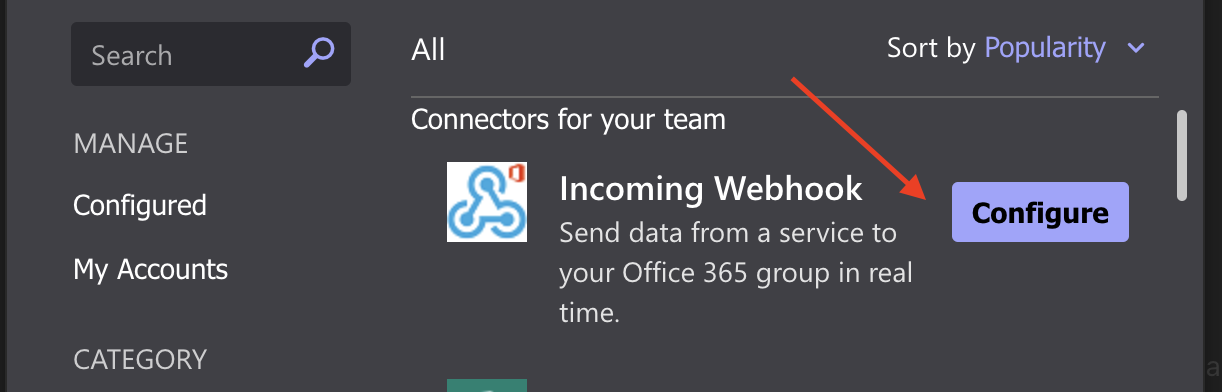
- Click Configure next to Incoming Webhook
- Name the integration “Orchestra integration” and click Create. Once the URL is generated, copy the link.
Configure the channel for an individual program
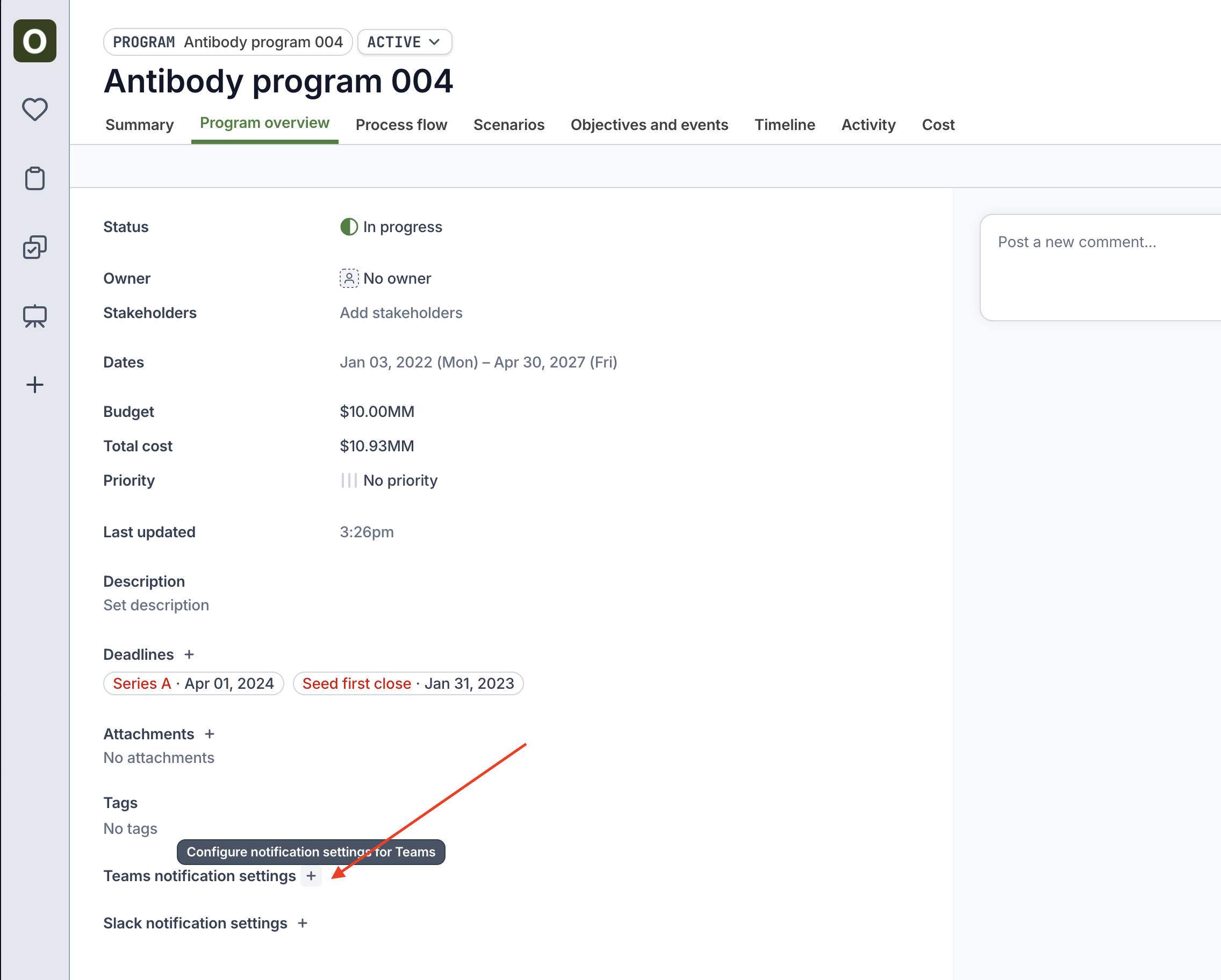
- Go to the program’s Program Overview tab and click the + next to Teams notification settings
- Paste in the copied URL, turn on the toggle, and click Save.
Configure the channel for all notifications
Only organization admins can set up the Teams integration for all notifications
- Go to your Organization Settings (from your avatar)
- Click the
...on the Microsoft Teams row > Update. Paste in the copied URL.