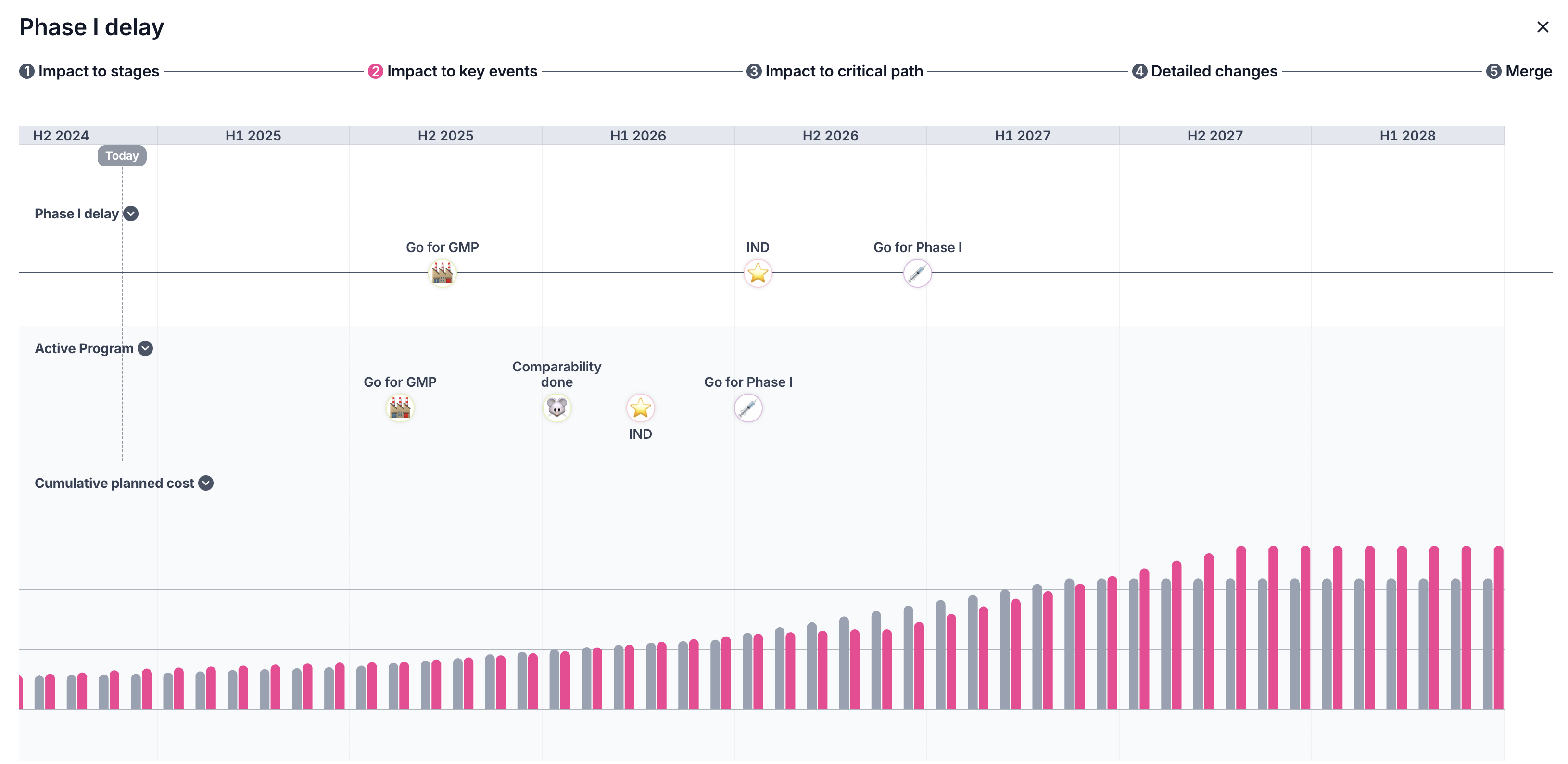
Create a new scenario
The base case plan is considered Active, and scenarios can be built off the active plan.- Open a program where you want to create a scenario. Above the name of the program, click the Active button > Create scenario. Use the sidepanel to name and create the scenario
- Update the objectives, key events, cost, dates, etc. of the scenario as you would for a typical program.
- Orchestra will keep track of all changes in the Changelog tab
- Use the reset button to reset the value (date, cost, status) to the active plan
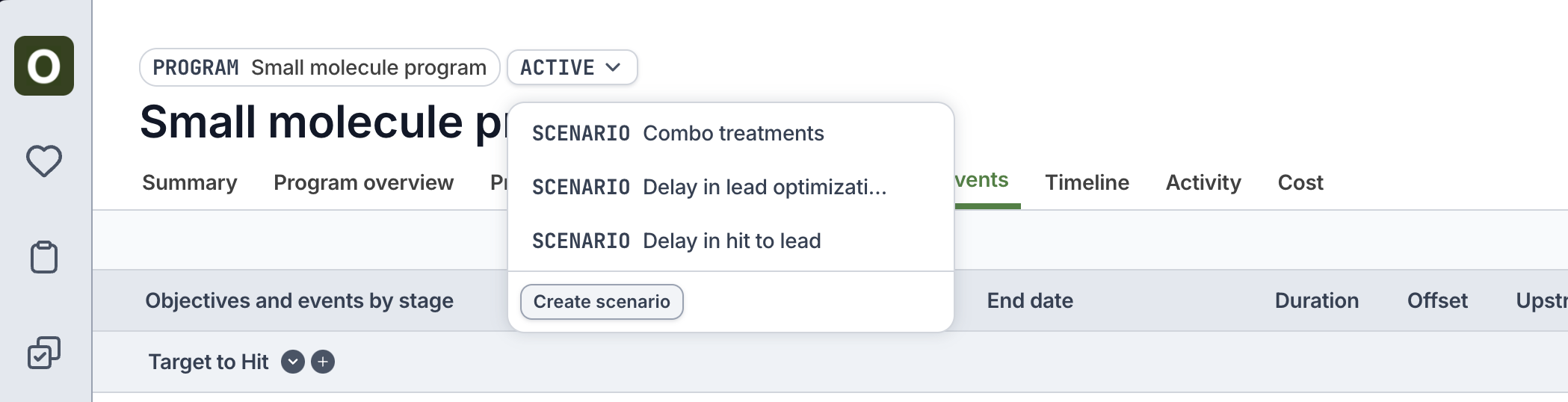
Compare the scenario to active
Seeing how major milestone dates may shift during scenarios can be critically important. See these side-by-side comparisons by first toggling back to the active program (click the Scenario button above the name > Return to active program) Click the Scenarios tab to view the stage and key event comparison between the active plan and the scenarios.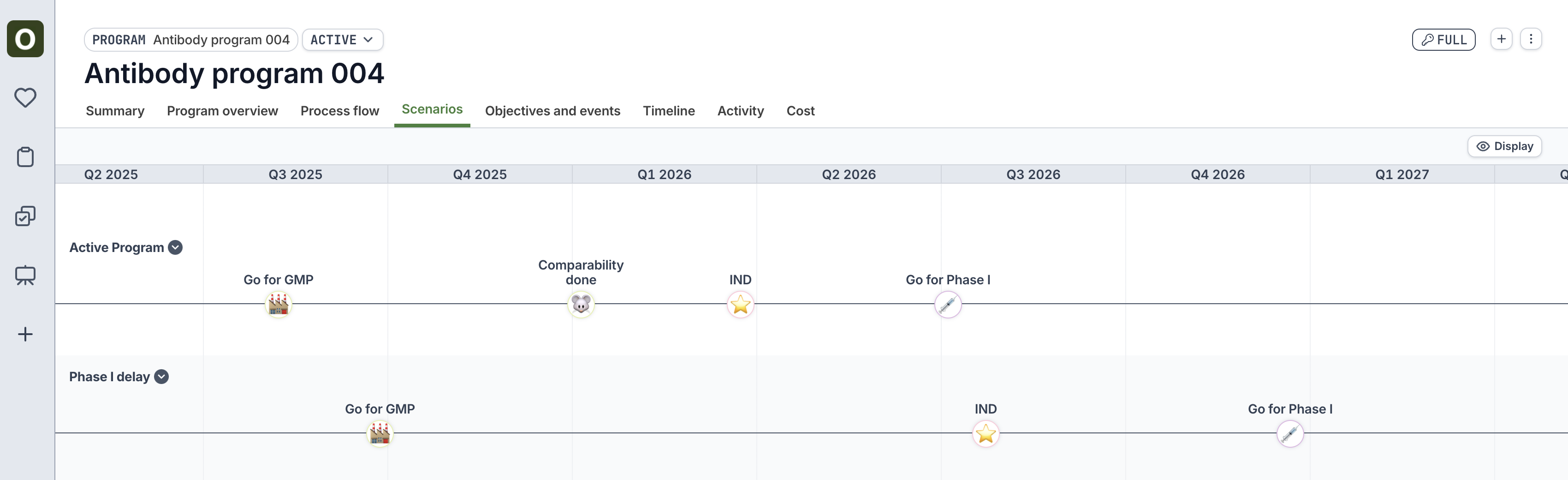
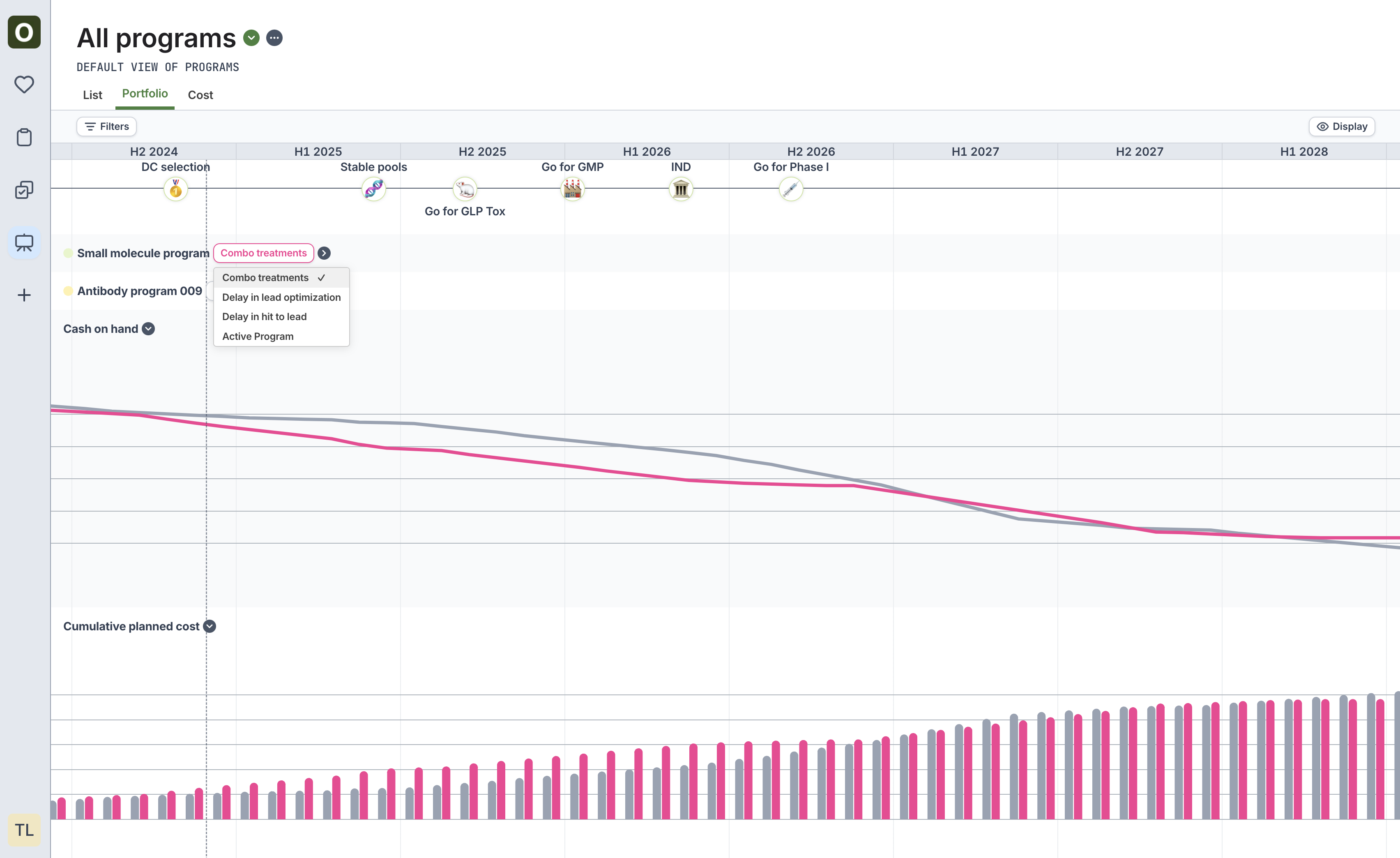
Merge a scenario to become active
If the decision is made that one of the scenarios should actually become the active plan, use the Merge functionality to turn the scenario into active. On the scenario page, click the Merge icon at the top right to compare the scenario to active and initiate the merge.