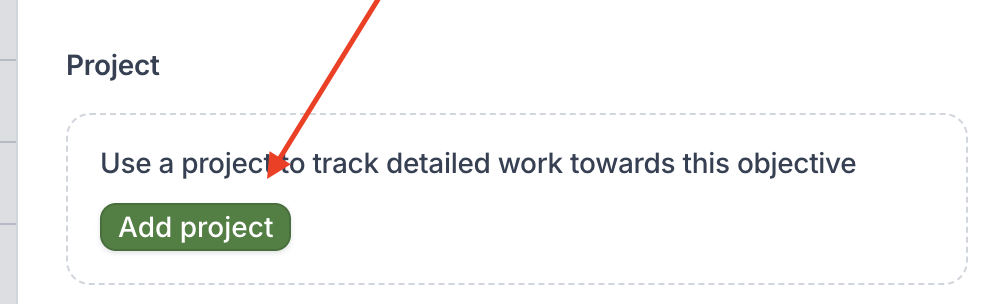
Add a project to an objective
- Click to open an objective’s sidepanel, and click Add project
- Add a new project through one of the available methods:
- Create a new blank project: Creates a blank project that you can build from scratch
- Create a new copy of an existing project: Creates a copy of an existing project. Useful when you want to use an existing project as a template.
- Link an existing project: A project can be linked to >1 objective. Good for instances where a project has already been created, and you want to link it back to a program.
- Use the project to track execution of work for the program objective. See Task basics for more information about managing project tasks.
Use the timeline to drill down into an objective
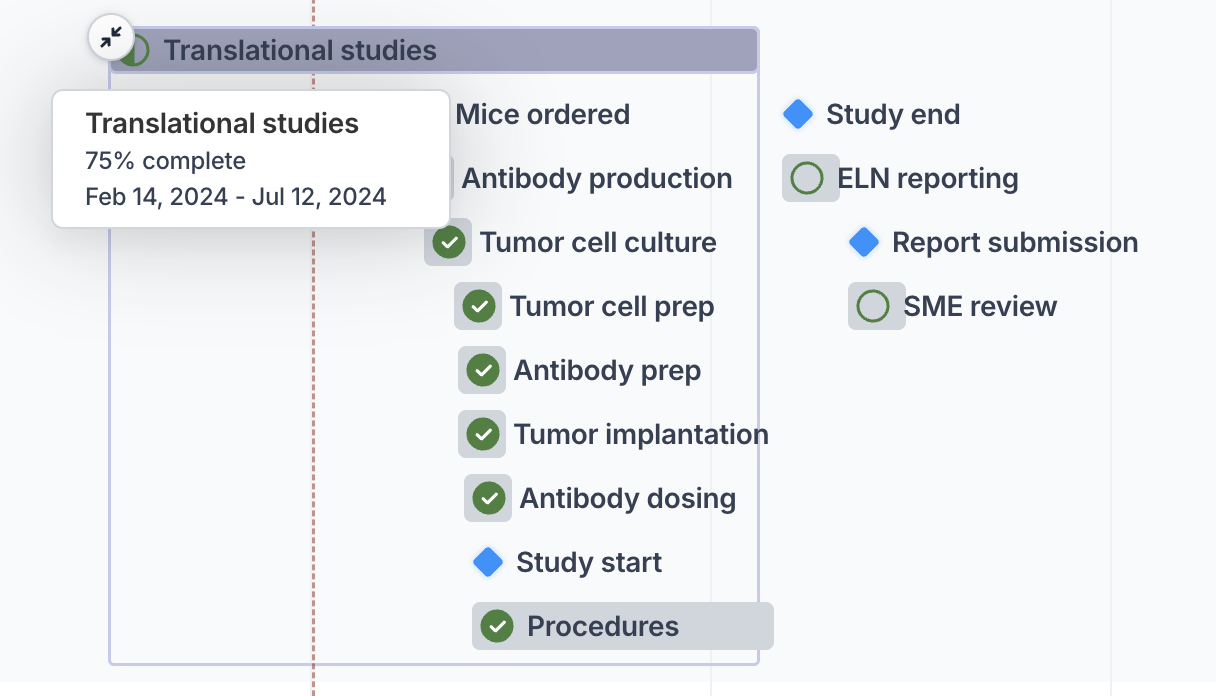
- On the Timeline tab of a program, click on the expand icon for any objective that has a linked project
- The timeline bar will expand to show the tasks within the project
- Continue expanding down the hierarchy if there are additional projects linked to those tasks
Sync objective dates and cost to project
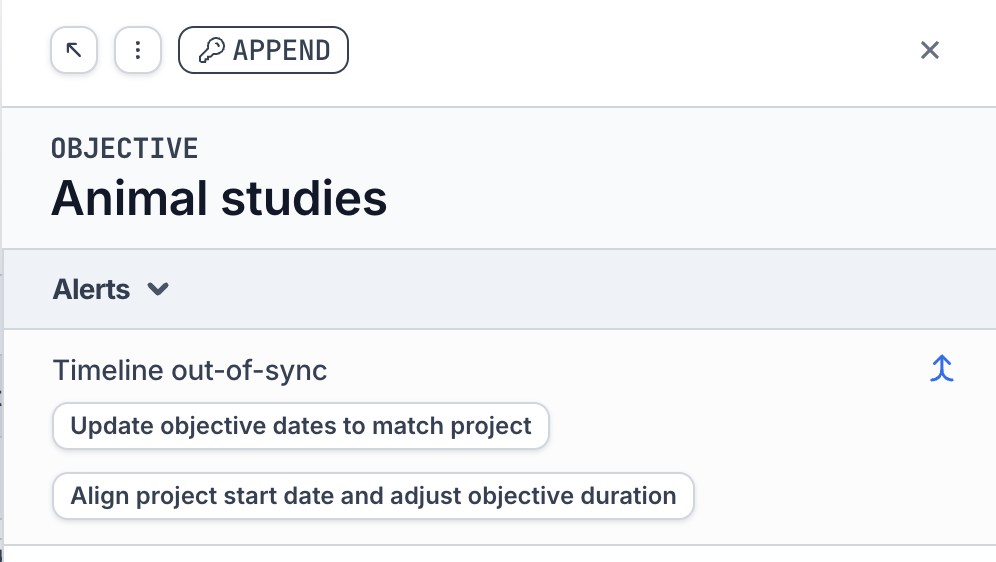
Because Orchestra allows you to track the planned vs. actual work, there may be discrepancies between the “planned” dates/cost (of the objective) vs. the “actual” dates/cost (of the project). When this occurs, the objective will display a Risk that can be found at the top of the sidepanel. Click the button Update objective dates or Update objective cost to update the planned objective dates/cost to match the project dates/cost.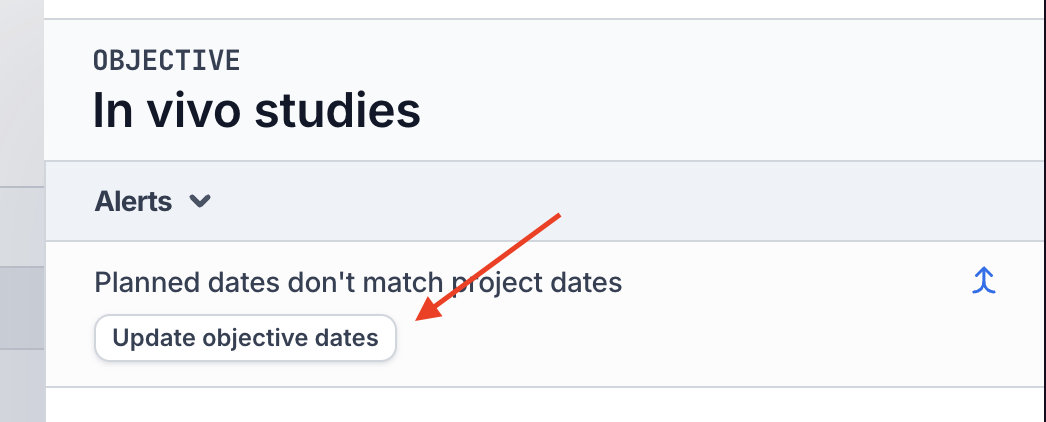
Align project tasks to objective dates
Use this feature when the dates of the objective have changed, and you want to update the dates of its project’s tasks- Clicking Align project start date and adjust objective duration will shift all of the tasks in the project (and sub-tasks within it) such that the start date of the project matches the start date of the objective. It will also match the objective’s duration to the project’s duration.
- All tasks and sub-tasks within the project must be in a “Pending” state for this action to be allowed