
Set assignees and stakeholders
The user must have an Orchestra account to be assigned to the task.
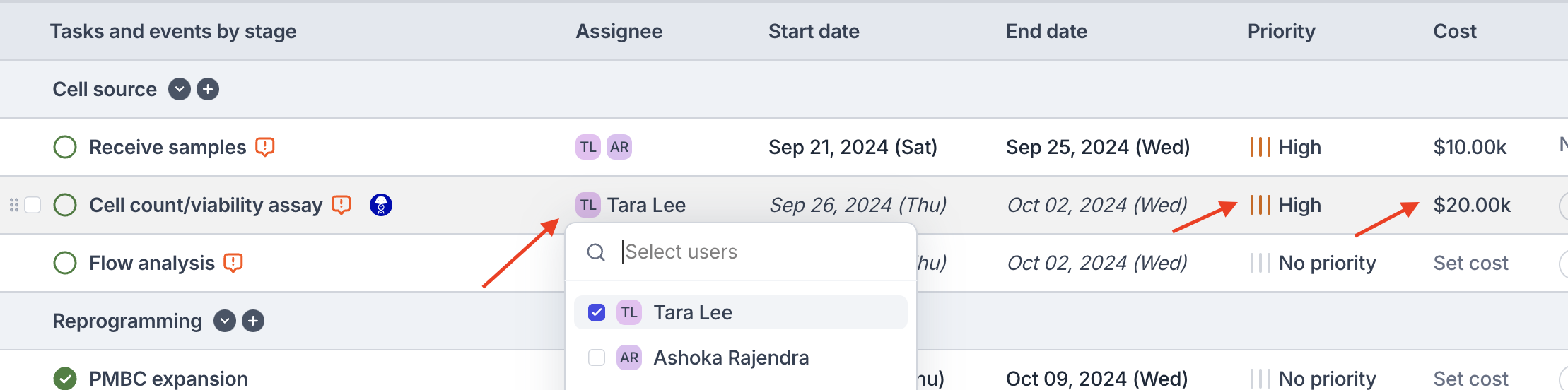
Set status, cost, and priority
Click on the Status icon next to the task name to edit the status of a task directly.Setting a task to In progress, Complete, or Failed will update the date to be non-calculated.
Label tasks with tags
Tags can help to sort, filter, and group tasks, especially when looking at tasks across multiple projects. Add tags directy from the Tasks and events tab, or from a task sidepanel. Tags can only be modified and deleted by organization admins. See Tags for more details.Bulk move and update
Bulk set status, tag, or assignee on multiple tasks, or perform other actions like duplicate, move stage, and delete. Use the checkbox next to the task row to bulk select multiple tasks at once. Available actions will appear at the bottom of the screen.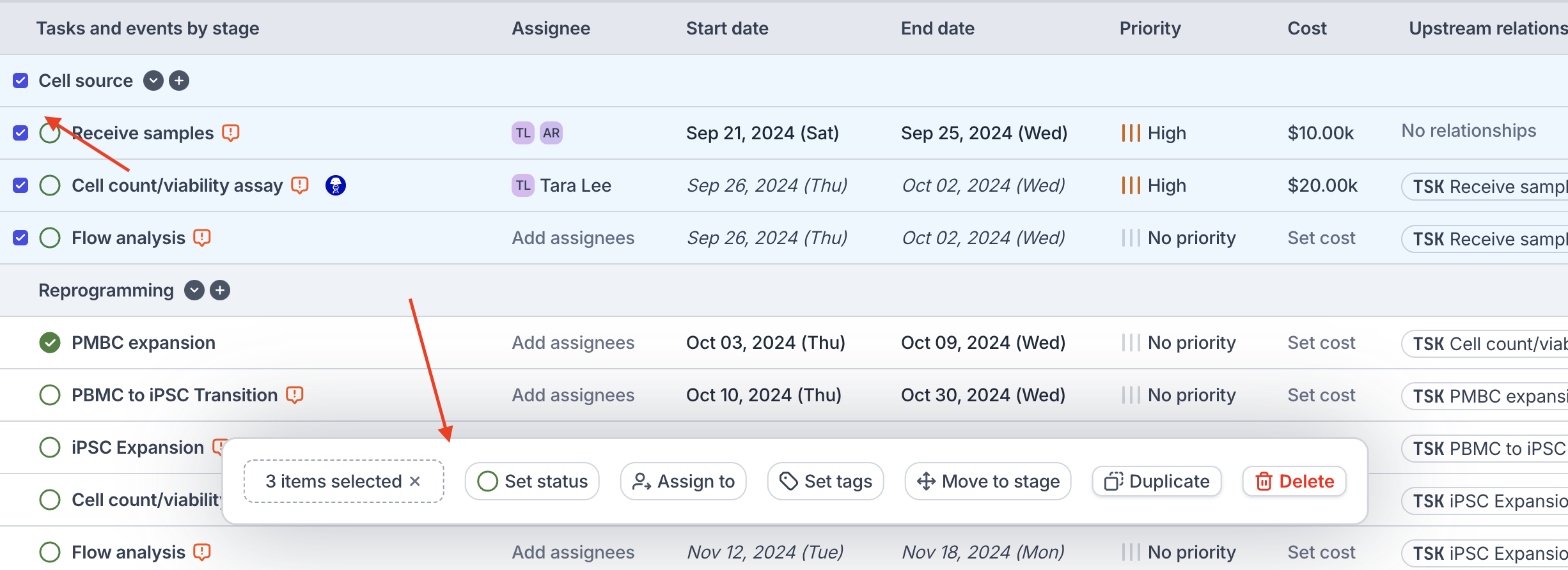
Add attachments and comments
Attach files or links in the Attachments field from a task’s sidepanel. Use the Comments at the bottom of the task sidepanel to coordinate work or provide updates. @-mention other users by typing the@ symbol.