
Create a saved view
- Navigate to the listing page for Tasks, Projects, or Programs from the sidebar menu.
- Apply any Filters that you are interested in adding for this saved view.
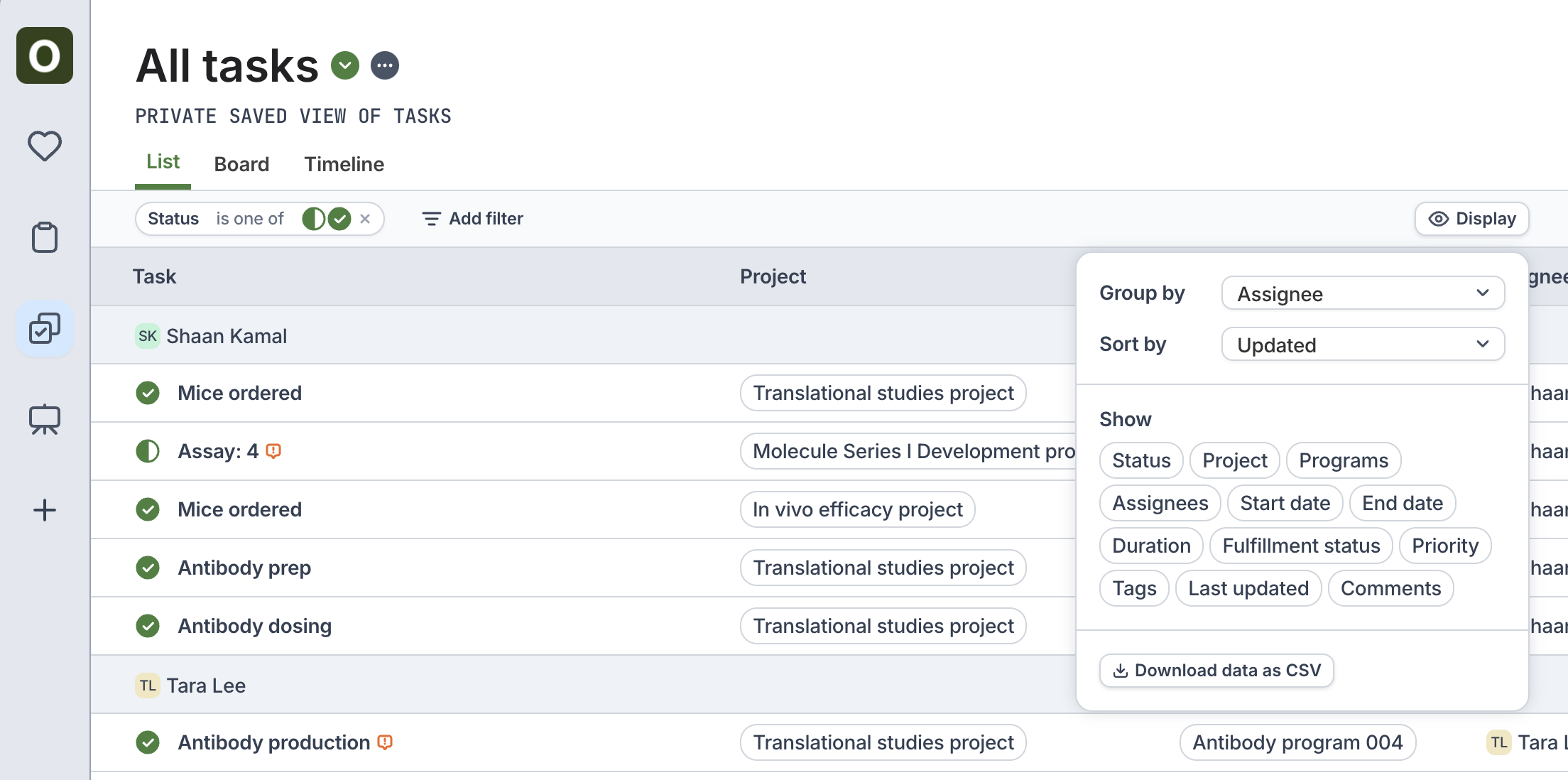
- Click on the Display button on the top right, and apply Group by and Sort by settings that may apply to your view.
- Once you are satisfied with the filters and display settings applied, click on the
...at the top > Save as… - Enter a name for the saved view, and choose the Visibility of the view.
- Private: View will only be visible to you
- Shared with my organization: View will be visible to everyone in the organization
Edit a saved view
- From the saved view you want to update, edit the filters and display settings as needed
- Use the
...button at the top to Save updates or save it as a new view by clicking Save as… - Click Edit settings to change the name of the view or update the sharing settings of the view
View saved views
- Use the ⬇️ button to view all of the saved views of that type (e.g., Task, Project, or Program)
- Use the ❤️ icon on the sidebar menu to view all of the saved views that you have access to