> ## Documentation Index
> Fetch the complete documentation index at: https://docs.orchestra.bio/llms.txt
> Use this file to discover all available pages before exploring further.
# Link tasks to Benchling entries
The Benchling integration must be enabled. Contact [support@orchestra.bio](mailto:support@orchestra.bio) if you have questions.
Certain tasks may have a Benchling entry associated with it - this is especially true when the Benchling entry contains the procedure, data, or notes for a particular set of work.
1. Open the task sidepanel and click **Add method** > **Benchling entry** under the Fulfillment section
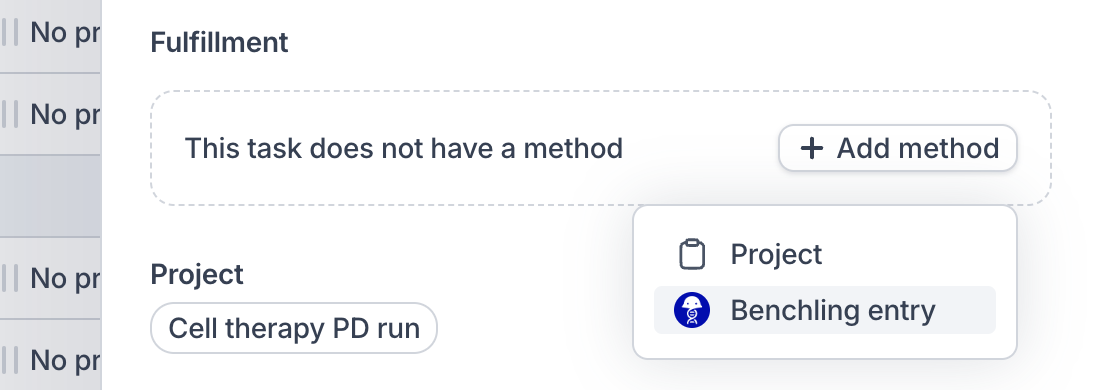 2. Click **Create** to open the modal to add a Benchling entry
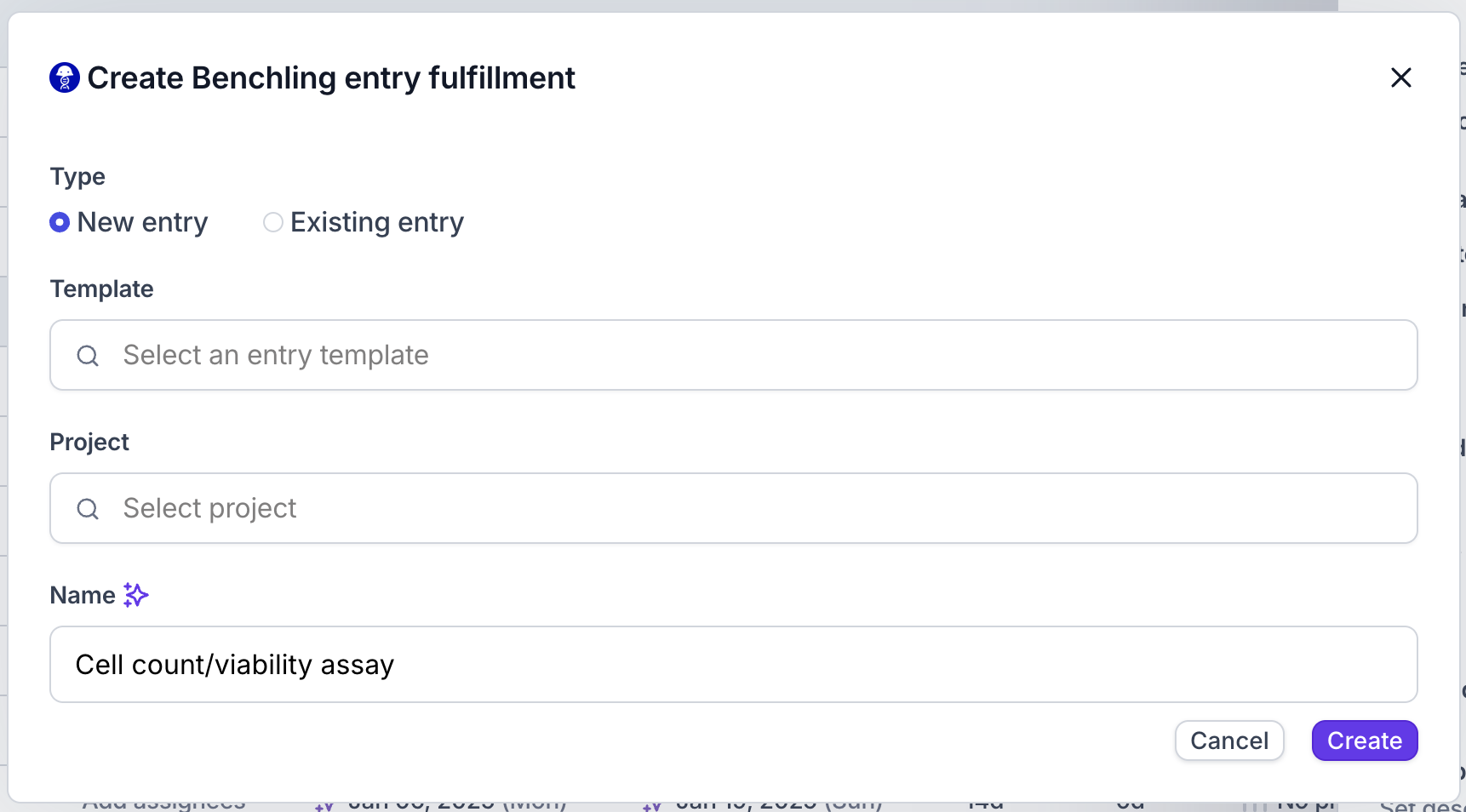
3. To create a new entry in Benchling, select which Benchling entry template you would like to use, and which Benchling project you want to put it in. The name of the entry will default to the name of the task, but can be overwritten
4. To link an existing Benchling entry to the task, choose **Existing entry** and paste in the URL from the Benchling entry's browser tab
5. A preview of the linked Benchling entry will appear under Fulfillment.
2. Click **Create** to open the modal to add a Benchling entry
3. To create a new entry in Benchling, select which Benchling entry template you would like to use, and which Benchling project you want to put it in. The name of the entry will default to the name of the task, but can be overwritten
4. To link an existing Benchling entry to the task, choose **Existing entry** and paste in the URL from the Benchling entry's browser tab
5. A preview of the linked Benchling entry will appear under Fulfillment.