> ## Documentation Index
> Fetch the complete documentation index at: https://docs.orchestra.bio/llms.txt
> Use this file to discover all available pages before exploring further.
# Task basics
Tasks must belong to a [Project](/projects/create-edit), but tasks from different projects can be aggregated together into a [Saved View](/find-organize/saved-view). This allows you to sort / filter / group tasks by different properties like tags, assignees, etc.
## Set assignees and stakeholders
The user must have an Orchestra account to be assigned to the task.
Click on the **Assignee** column to set one or more users as an assignee to the task.
From the sidepanel of a task, click on the **Stakeholders** field to set one or more stakeholders. Stakeholders will get notifications about task updates, but will not appear as the assignee.
Assigning a task to a user will send them an email notification.
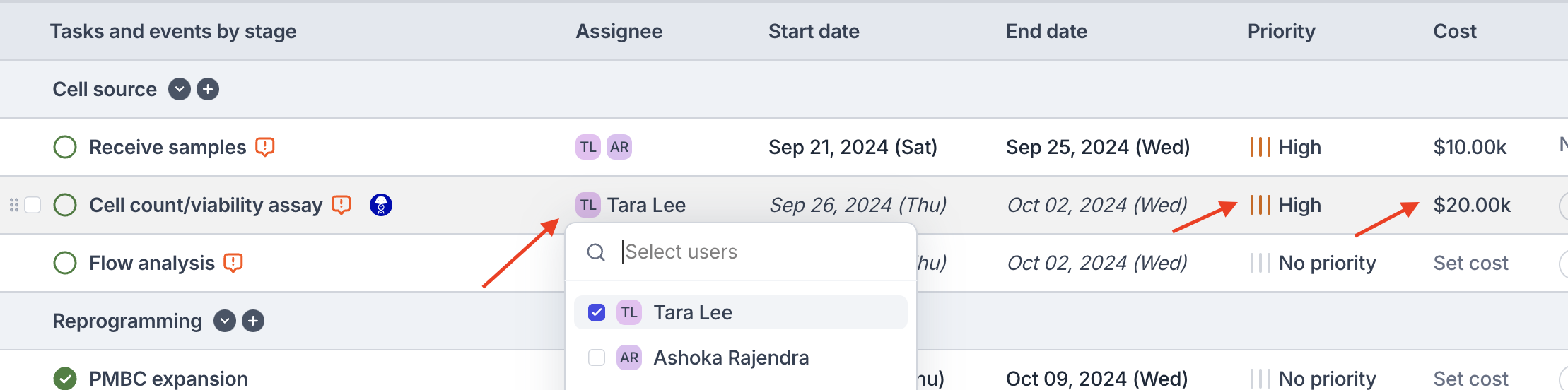 ## Set status, cost, and priority
Click on the **Status** icon next to the task name to edit the status of a task directly.
Setting a task to In progress, Complete, or Failed will update the date to be non-calculated.
If necessary, update the **Cost** field of the task to track costs associated with the project. The total cost of the project is displayed on the Project overview tab.
Use the **Priority** field to help individuals prioritize their tasks.
## Label tasks with tags
Tags can help to sort, filter, and group tasks, especially when looking at tasks across multiple projects.
Add tags directy from the **Tasks and events** tab, or from a task sidepanel. Tags can only be modified and deleted by organization admins. See [Tags](/find-organize/tags) for more details.
## Bulk move and update
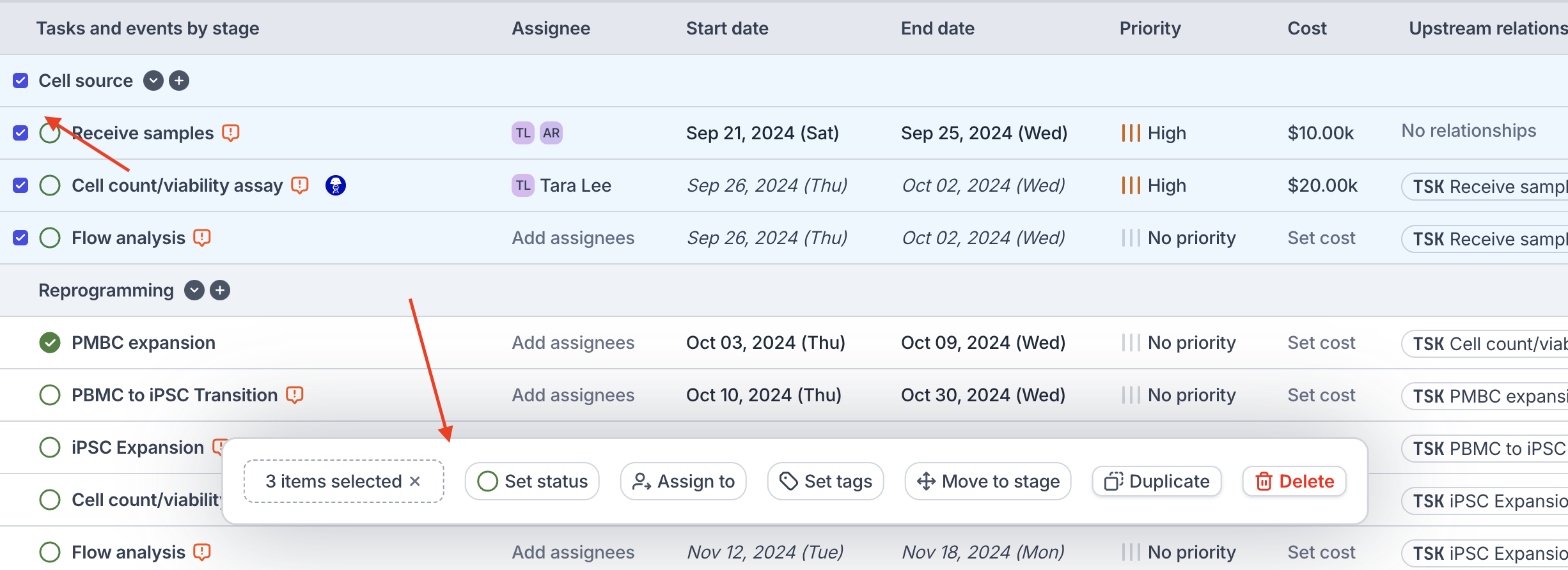
Bulk set status, tag, or assignee on multiple tasks, or perform other actions like duplicate, move stage, and delete.
Use the checkbox next to the task row to bulk select multiple tasks at once. Available actions will appear at the bottom of the screen.
## Set status, cost, and priority
Click on the **Status** icon next to the task name to edit the status of a task directly.
Setting a task to In progress, Complete, or Failed will update the date to be non-calculated.
If necessary, update the **Cost** field of the task to track costs associated with the project. The total cost of the project is displayed on the Project overview tab.
Use the **Priority** field to help individuals prioritize their tasks.
## Label tasks with tags
Tags can help to sort, filter, and group tasks, especially when looking at tasks across multiple projects.
Add tags directy from the **Tasks and events** tab, or from a task sidepanel. Tags can only be modified and deleted by organization admins. See [Tags](/find-organize/tags) for more details.
## Bulk move and update
Bulk set status, tag, or assignee on multiple tasks, or perform other actions like duplicate, move stage, and delete.
Use the checkbox next to the task row to bulk select multiple tasks at once. Available actions will appear at the bottom of the screen.
 ## Add attachments and comments
When possible, attach a link (e.g., Sharepoint) instead of a file to ensure that the data / information does not become stale.
Attach files or links in the **Attachments** field from a task's sidepanel.
Use the **Comments** at the bottom of the task sidepanel to coordinate work or provide updates. @-mention other users by typing the `@` symbol.
## Add attachments and comments
When possible, attach a link (e.g., Sharepoint) instead of a file to ensure that the data / information does not become stale.
Attach files or links in the **Attachments** field from a task's sidepanel.
Use the **Comments** at the bottom of the task sidepanel to coordinate work or provide updates. @-mention other users by typing the `@` symbol.