> ## Documentation Index
> Fetch the complete documentation index at: https://docs.orchestra.bio/llms.txt
> Use this file to discover all available pages before exploring further.
# Create and edit projects
## Key terms
Represents a set of work that contains tasks that need to be assigned and tracked. Typically spans weeks or months. (e.g., Protein Core Production)
A group of Tasks within a project (e.g., Sequencing)
A unit of work that can be assigned to an individual. A task can be linked to a Benchling entry (see [Linking entries to Benchling](/projects/tasks/task-benchling))
A milestone within the project. These can be associated with an emoji. (e.g., Hits picked)
## Create a new project
* Use the `+` button from the left sidebar to create a new blank project
* Navigate to the **Project overview** tab to adjust any necessary metadata
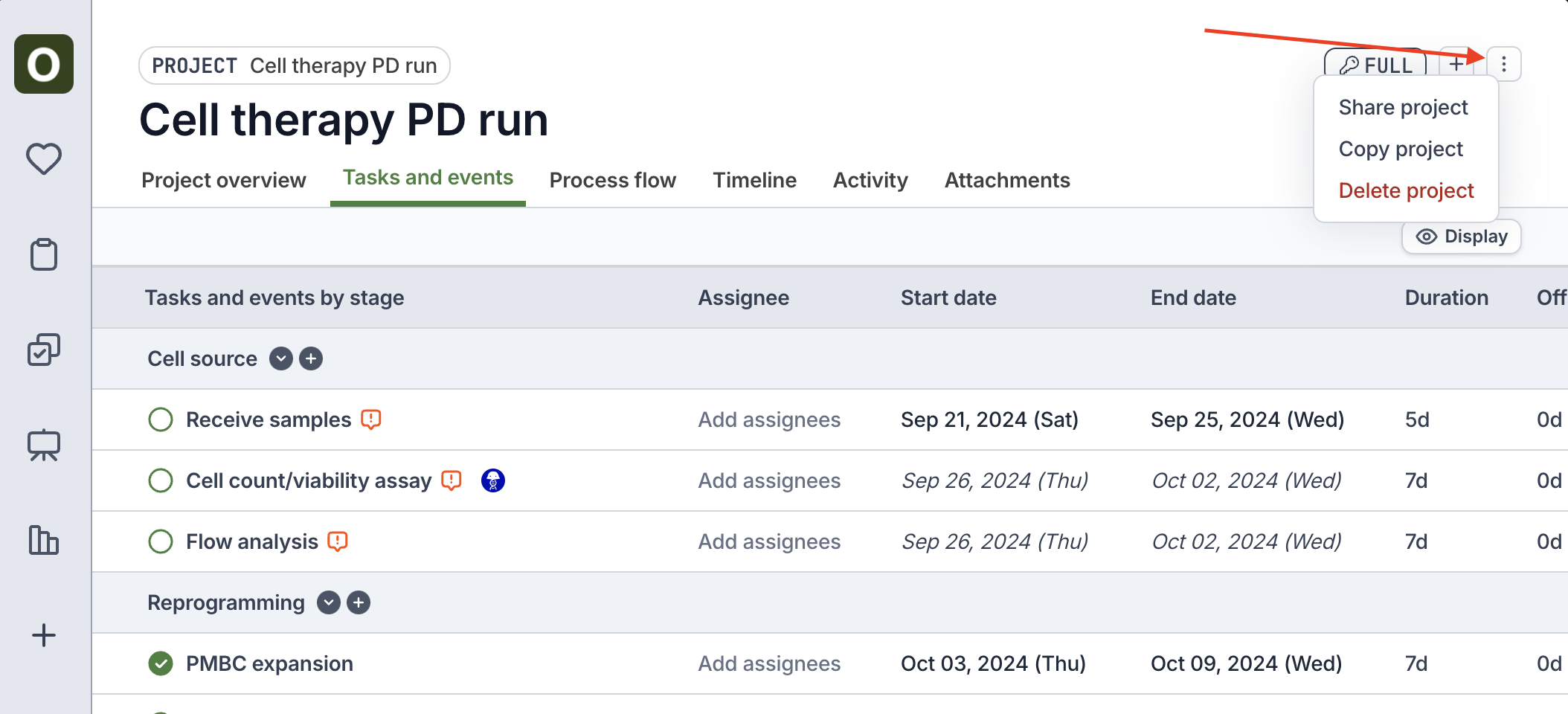
* Use the `...` button > **Project program** at the top-right to adjust the permissions settings
* By default, the creator will have Full access to the project, and the rest of the organization will have Append access (can edit, but not delete the project)
## Copy a project
Tip: For repeated sets of work, create a "template" project, and copy the template to use it
* Use the `...` button > **Copy project** at the top-right
* Orchestra will copy over all of the tasks, key events, dependencies, durations, assignees, and costs from the original project
 ## Edit a project
* Rename the project or a stage by clicking into its name
* Add a new stage by clicking the `+` button at the top-right
* Add a new task or key event by clicking the `+` button at the top-right or the `+` button next to one of the stages
* Reorder the tasks and key events by dragging the row from the left handle
## Set dates and dependencies
There are a few methods to set dependencies between tasks and key events:
* From the table view, directly click into one of the dependency columns to add upstream/downstream dependencies
* Click into a task / key event, and update the dependency field from the sidepanel
* Use the **Process flow** tab
* Click on the edges of the tasks / key events to drag and drop a dependency line
* Click on a line to reveal the trash icon to delete it
Set the dates of any tasks or key event by using the date field. We will automatically calculate dates of any dependent objectives or key events.
## Edit a project
* Rename the project or a stage by clicking into its name
* Add a new stage by clicking the `+` button at the top-right
* Add a new task or key event by clicking the `+` button at the top-right or the `+` button next to one of the stages
* Reorder the tasks and key events by dragging the row from the left handle
## Set dates and dependencies
There are a few methods to set dependencies between tasks and key events:
* From the table view, directly click into one of the dependency columns to add upstream/downstream dependencies
* Click into a task / key event, and update the dependency field from the sidepanel
* Use the **Process flow** tab
* Click on the edges of the tasks / key events to drag and drop a dependency line
* Click on a line to reveal the trash icon to delete it
Set the dates of any tasks or key event by using the date field. We will automatically calculate dates of any dependent objectives or key events.
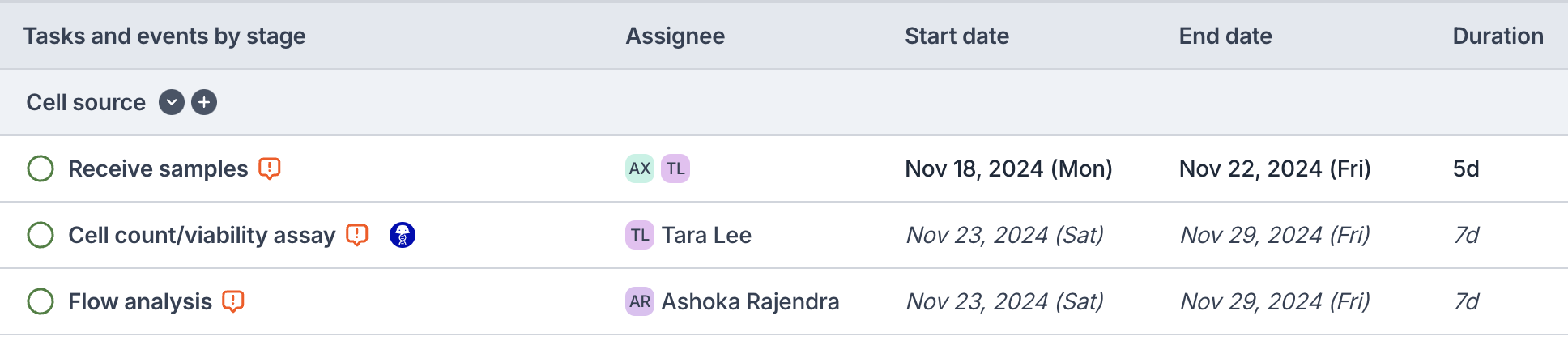 Use the **offset** field to indicate the number of days an objective or key event should occur after its upstream dependencies. It can also be a negative number.