> ## Documentation Index
> Fetch the complete documentation index at: https://docs.orchestra.bio/llms.txt
> Use this file to discover all available pages before exploring further.
# Scenario planning
Make scenarios of your program plan and then visualize how those scenarios compare to one another.
## Create a new scenario
The base case plan is considered **Active**, and scenarios can be built off the active plan.
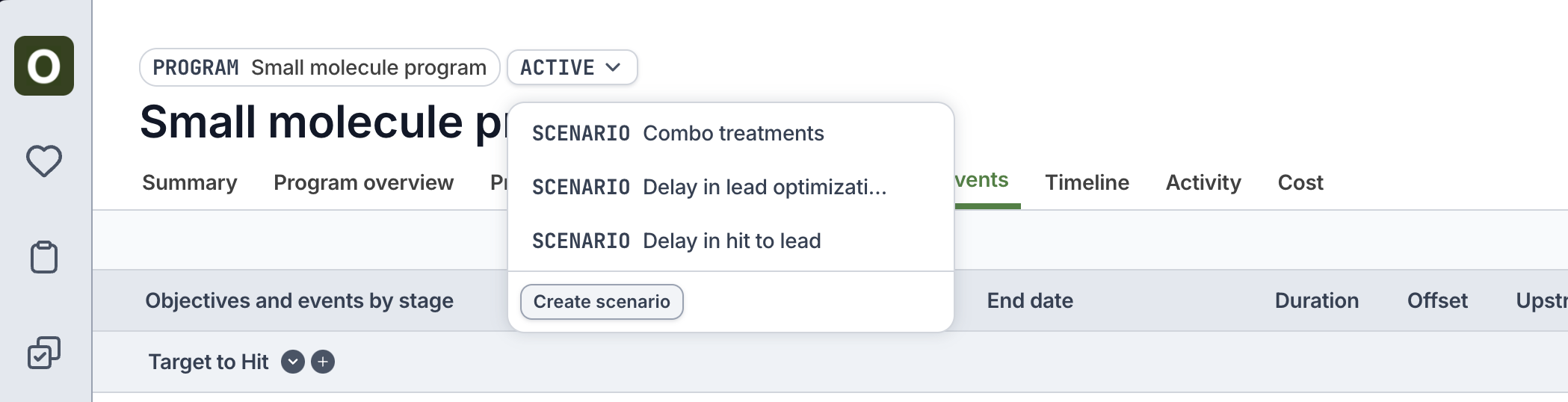
1. Open a program where you want to create a scenario. Above the name of the program, click the **Active** button > **Create scenario**. Use the sidepanel to name and create the scenario
2. Update the objectives, key events, cost, dates, etc. of the scenario as you would for a typical program.
* Orchestra will keep track of all changes in the **Changelog** tab
* Use the reset button to reset the value (date, cost, status) to the active plan
 ## Compare the scenario to active
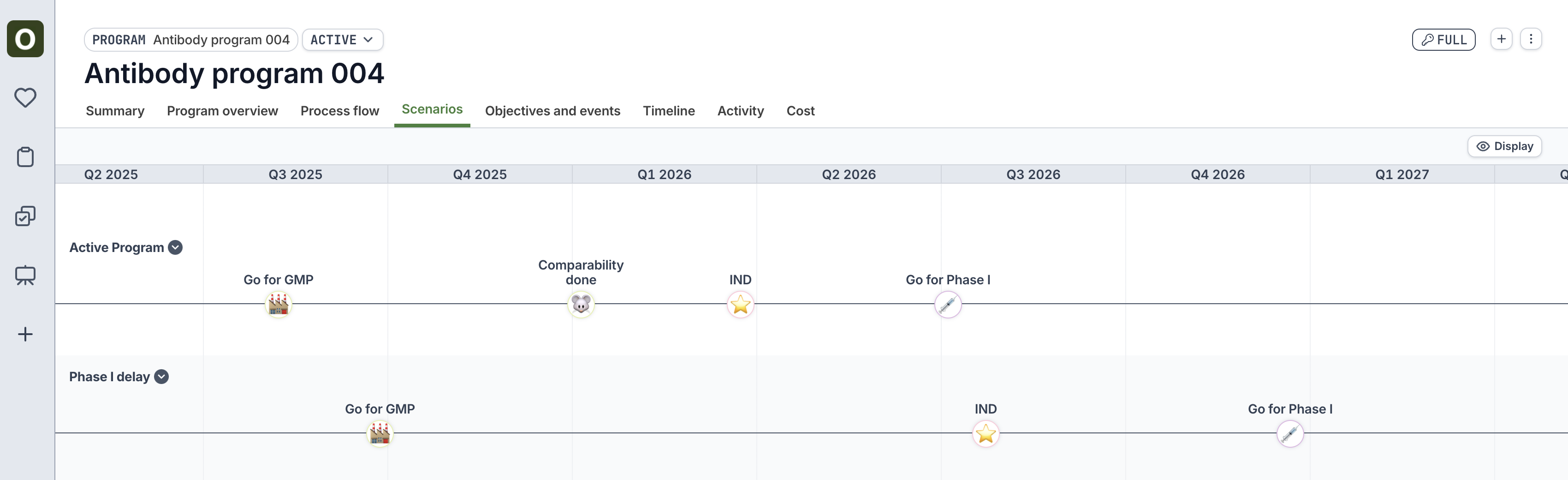
Seeing how major milestone dates may shift during scenarios can be critically important. See these side-by-side comparisons by first toggling back to the active program (click the **Scenario** button above the name > **Return to active program**)
Click the **Scenarios** tab to view the stage and key event comparison between the active plan and the scenarios.
## Compare the scenario to active
Seeing how major milestone dates may shift during scenarios can be critically important. See these side-by-side comparisons by first toggling back to the active program (click the **Scenario** button above the name > **Return to active program**)
Click the **Scenarios** tab to view the stage and key event comparison between the active plan and the scenarios.
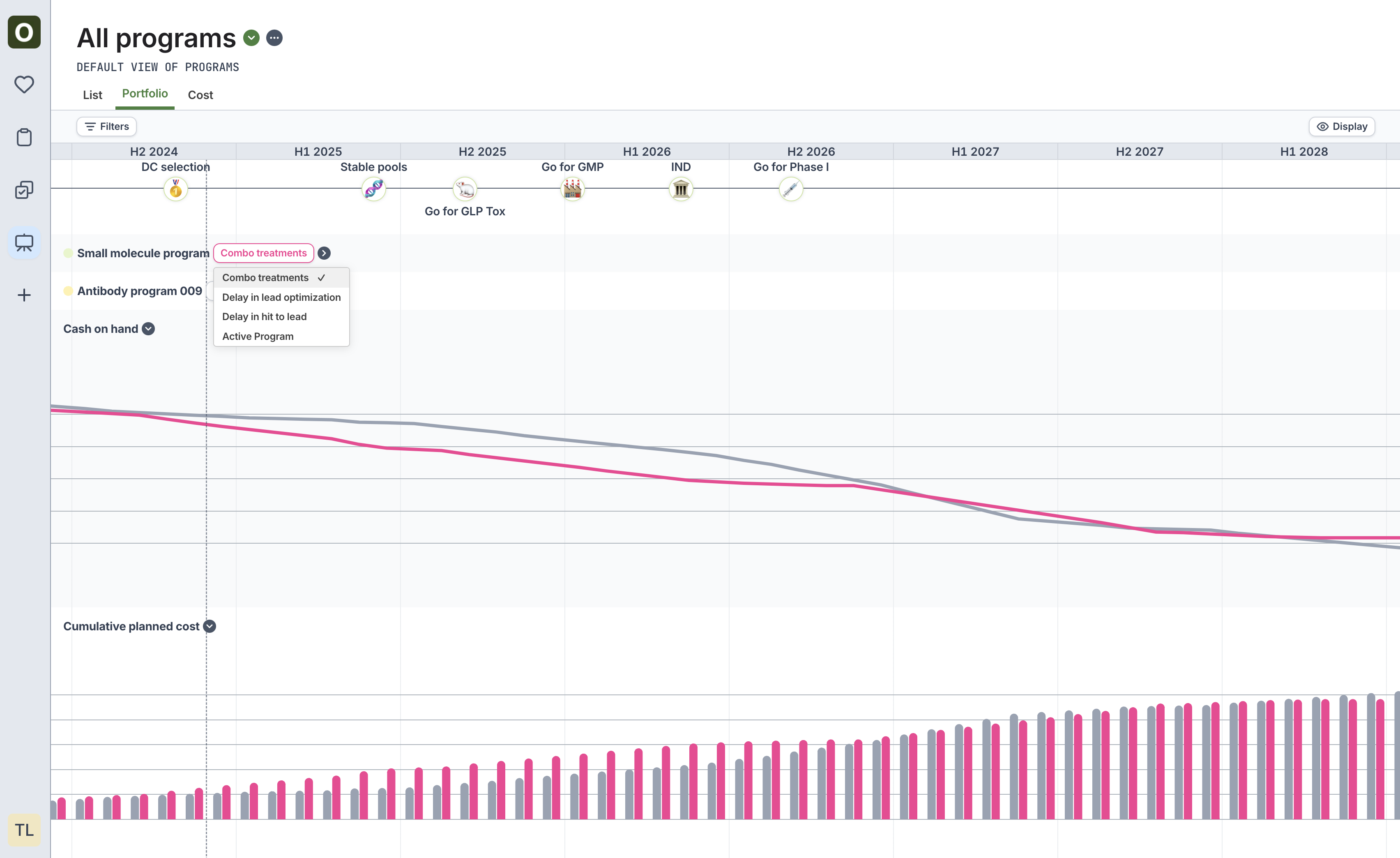
 See [Portfolio Visualizations](/portfolio/visualization) to see how to compare the collective impact of multiple scenarios across the portfolio.
 ## Merge a scenario to become active
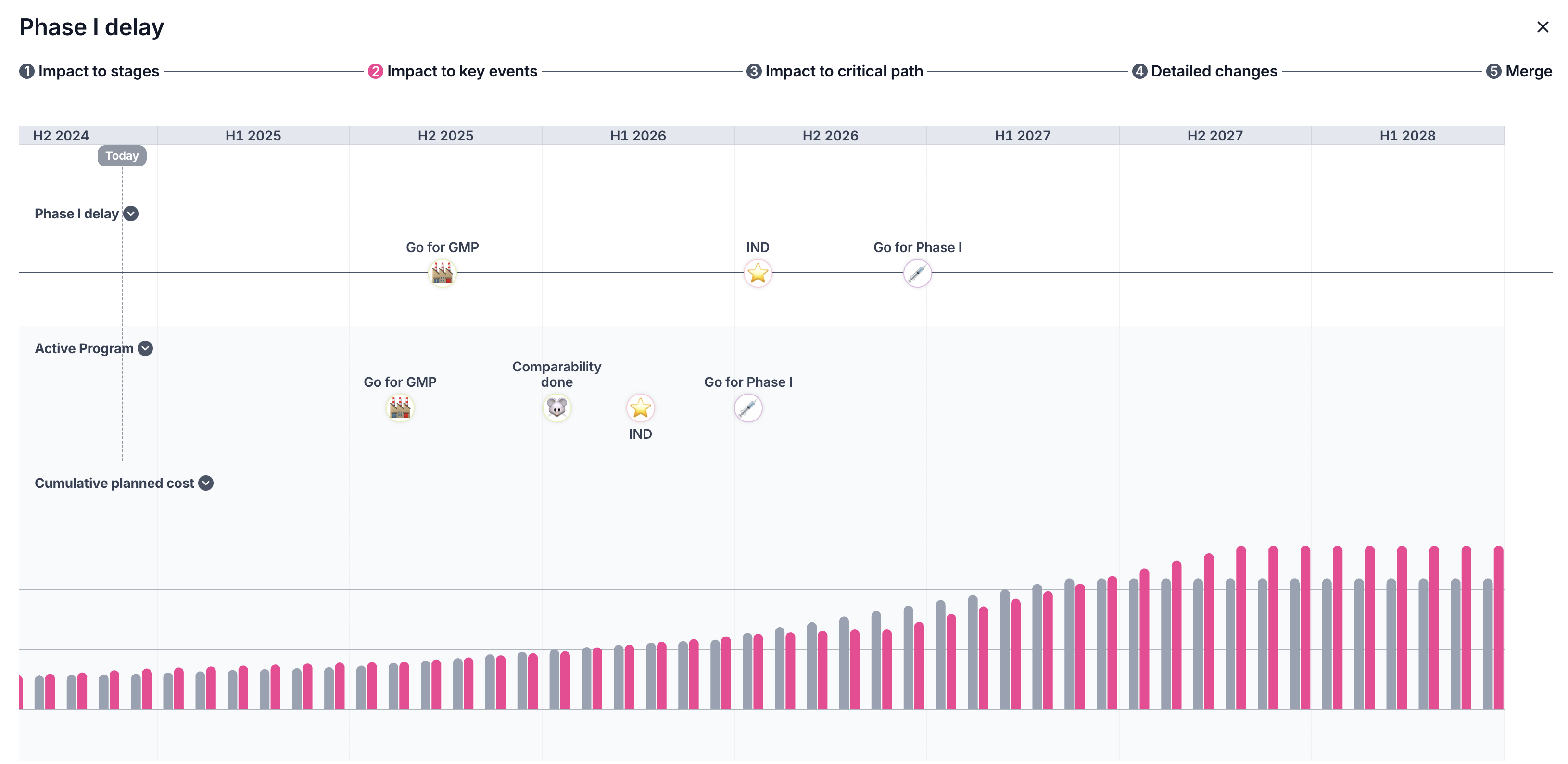
If the decision is made that one of the scenarios should actually become the active plan, use the **Merge** functionality to turn the scenario into active. On the scenario page, click the **Merge icon** at the top right to compare the scenario to active and initiate the merge.
## Merge a scenario to become active
If the decision is made that one of the scenarios should actually become the active plan, use the **Merge** functionality to turn the scenario into active. On the scenario page, click the **Merge icon** at the top right to compare the scenario to active and initiate the merge.
 The modal will toggle through the comparisons of scenario vs. active to confirm that you are comfortable with the changes being made. Confirm the changes at the end, and the current scenario will replace the active.