> ## Documentation Index
> Fetch the complete documentation index at: https://docs.orchestra.bio/llms.txt
> Use this file to discover all available pages before exploring further.
# Create and edit programs
## Key terms
Typically represents an asset, therapeutic area, or goal that spans multiple quarters or years (e.g., ORCH-001)
A group of Objectives within a program (e.g., Preclinical Studies)
A distinct set of activity within a program. Objectives can have dependencies on other objectives. (e.g., GLP tox study)
A milestone that may be dependent on other objectives. These can be associated with an emoji. (e.g., IND)
## Create a new program
* Use the `+` button from the left sidebar to create a new blank program
* Navigate to the **Program overview** tab to adjust any necessary metadata
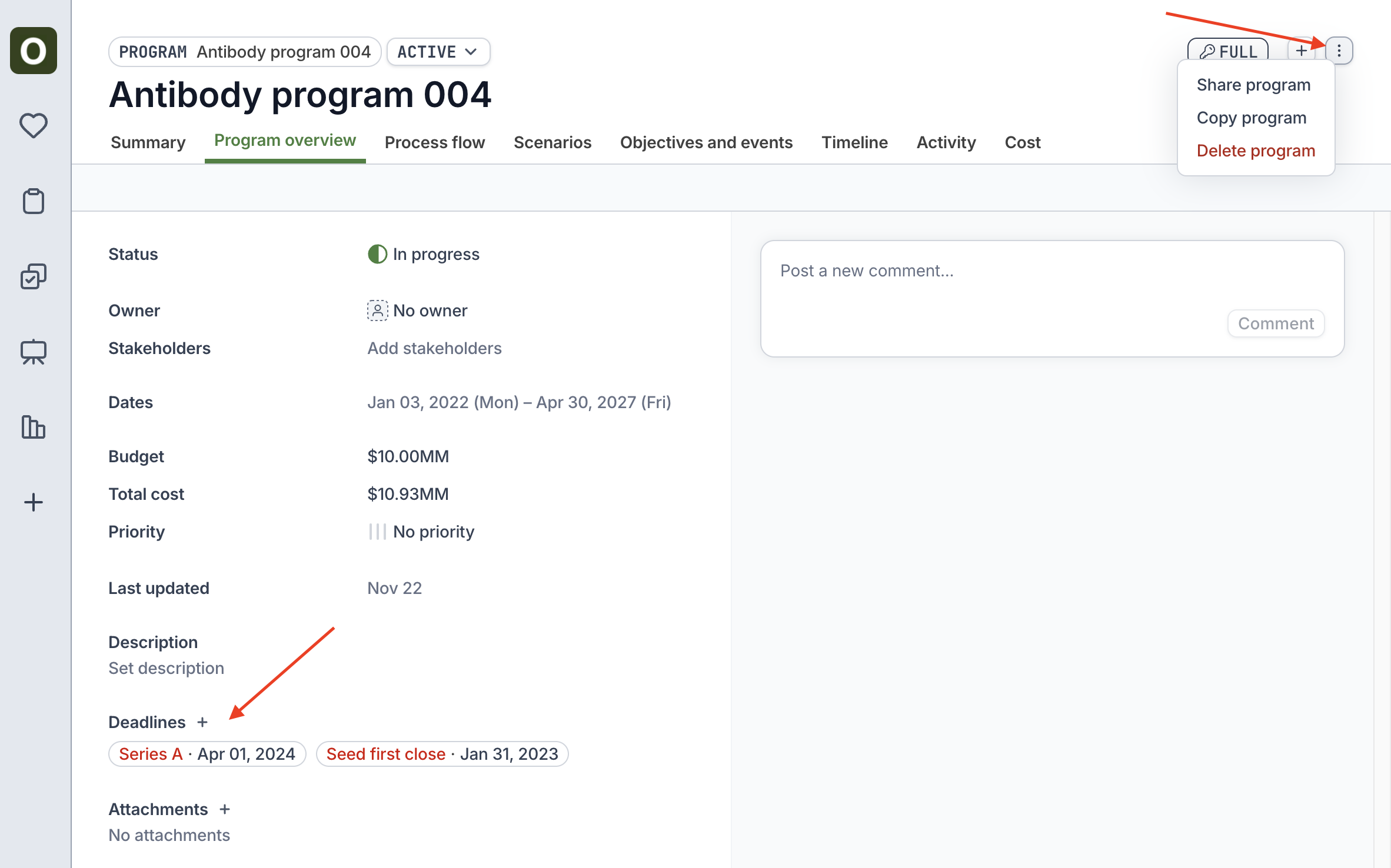
* Add a **Deadline** to represent immovable dates (e.g., Board Meeting)
* Use the `...` button > **Share program** at the top-right to adjust the permissions settings
* By default, the creator will have Full access to the program, and the rest of the organization will have Append access (can edit, but not delete the program)
 ## Copy a program
Instead of starting from scratch, copy a program to stamp out known timelines and dependencies
* Use the `...` button > **Copy program** at the top-right
* Orchestra will copy over all of the objectives, key events, dependencies, durations, and costs from the original program
## Edit a program
* Rename the program or a stage by clicking into its name
* Add a new stage by clicking the `+` button at the top-right
* Add a new objective or key event by clicking the `+` button at the top-right or the `+` button next to one of the stages
* Reorder the objectives and key events by dragging the row from the left handle
## Set dates and dependencies
There are a few methods to set dependencies between objectives and key events:
* From the table view, directly click into one of the dependency columns to add upstream/downstream dependencies
* Click into an objective / key event, and update the dependency field from the sidepanel
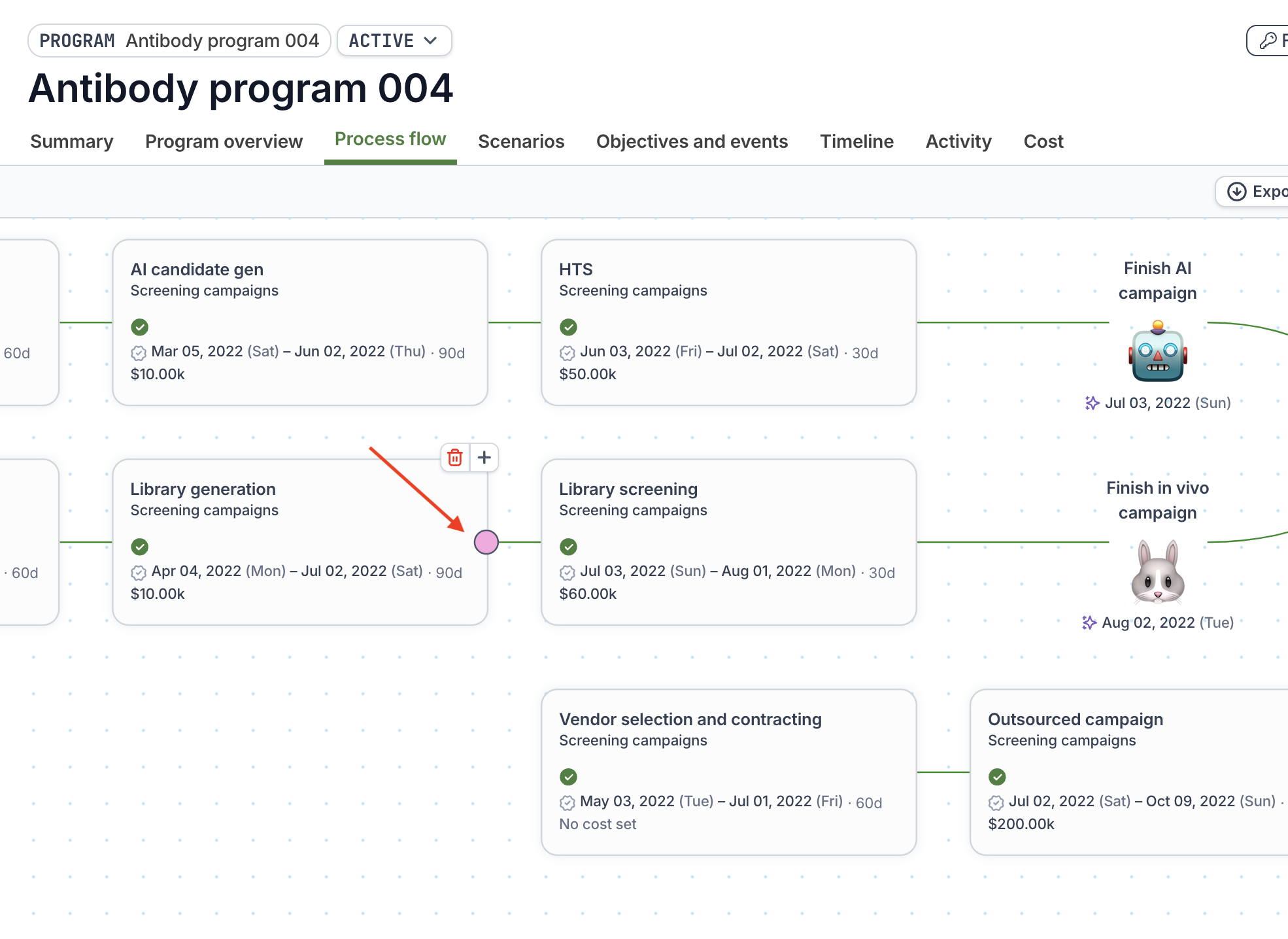
* Use the **Process flow** tab
* Click on the edges of the objectives / key events to drag and drop a dependency line
* Click on a line to reveal the trash icon to delete it
## Copy a program
Instead of starting from scratch, copy a program to stamp out known timelines and dependencies
* Use the `...` button > **Copy program** at the top-right
* Orchestra will copy over all of the objectives, key events, dependencies, durations, and costs from the original program
## Edit a program
* Rename the program or a stage by clicking into its name
* Add a new stage by clicking the `+` button at the top-right
* Add a new objective or key event by clicking the `+` button at the top-right or the `+` button next to one of the stages
* Reorder the objectives and key events by dragging the row from the left handle
## Set dates and dependencies
There are a few methods to set dependencies between objectives and key events:
* From the table view, directly click into one of the dependency columns to add upstream/downstream dependencies
* Click into an objective / key event, and update the dependency field from the sidepanel
* Use the **Process flow** tab
* Click on the edges of the objectives / key events to drag and drop a dependency line
* Click on a line to reveal the trash icon to delete it
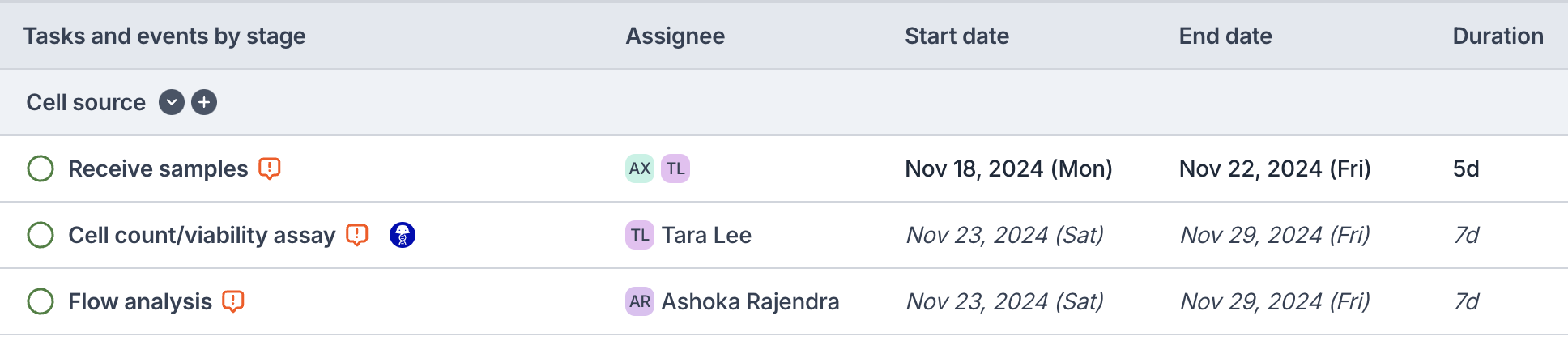
 Set the **dates** of any objective or key event by using the date field. We will automatically calculate dates of any dependent objectives or key events.
* Calculated dates are denoted by the date being *italicized*
* Dates that were set by the user or non-pending dates are not italicized
Set the **dates** of any objective or key event by using the date field. We will automatically calculate dates of any dependent objectives or key events.
* Calculated dates are denoted by the date being *italicized*
* Dates that were set by the user or non-pending dates are not italicized
 Use the **offset** field to indicate the number of days an objective or key event should occur after its upstream dependencies. It can also be a negative number.