> ## Documentation Index
> Fetch the complete documentation index at: https://docs.orchestra.bio/llms.txt
> Use this file to discover all available pages before exploring further.
# Saved views
Use filters and display settings to customize a saved view of your tasks, projects, or programs. Share these with others, or keep them private to yourself.
## Create a saved view
1. Navigate to the listing page for Tasks, Projects, or Programs from the sidebar menu.
2. Apply any **Filters** that you are interested in adding for this saved view.
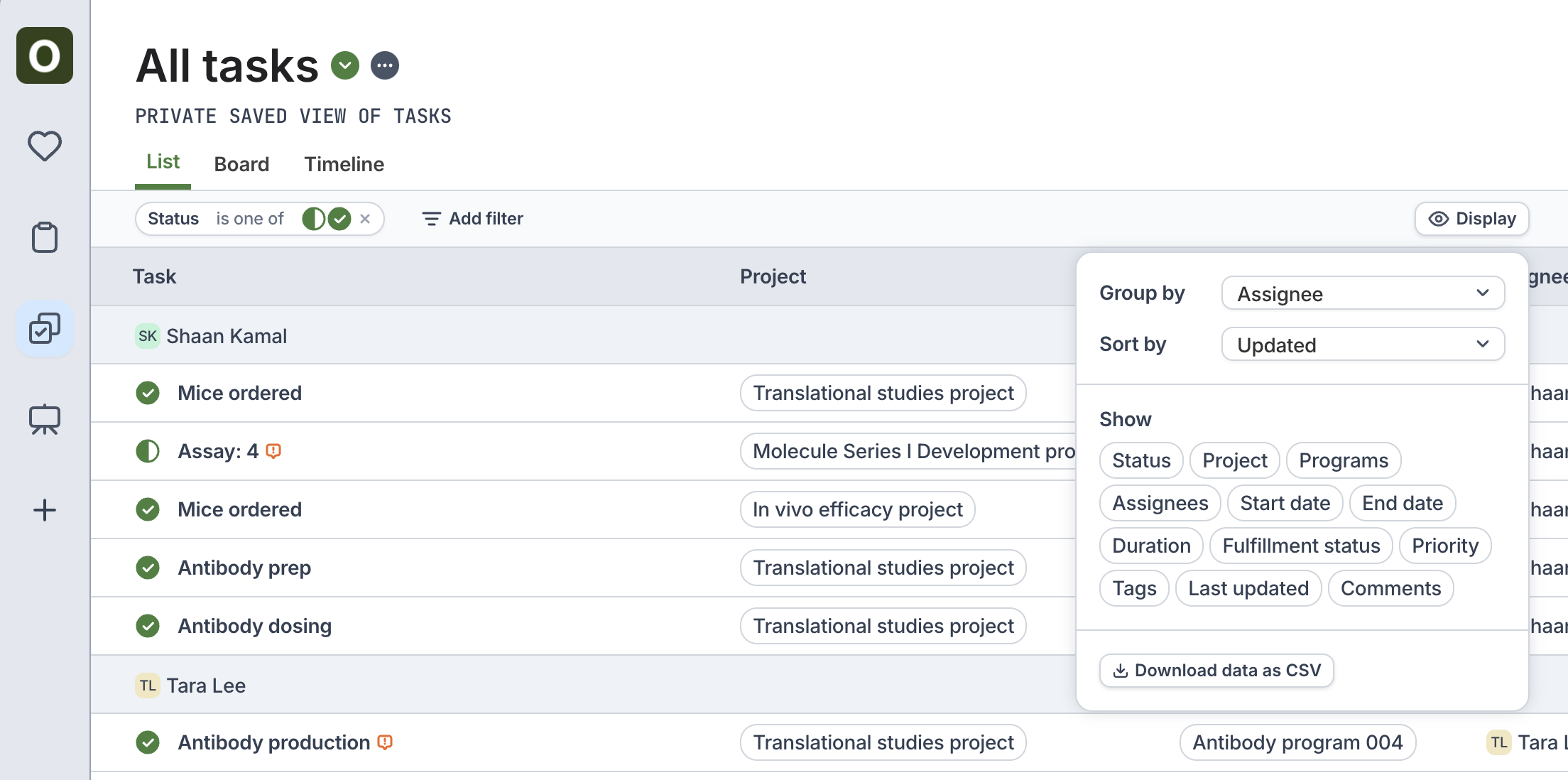
3. Click on the **Display** button on the top right, and apply **Group by** and **Sort by** settings that may apply to your view.
Grouping by Assignee or Tag can be an easy way to create a dashboard of work for different parts of the organization.
4. Once you are satisfied with the filters and display settings applied, click on the `...` at the top > **Save as...**
5. Enter a name for the saved view, and choose the **Visibility** of the view.
* Private: View will only be visible to you
* Shared with my organization: View will be visible to everyone in the organization
 ## Edit a saved view
1. From the saved view you want to update, edit the filters and display settings as needed
2. Use the `...` button at the top to **Save updates** or save it as a new view by clicking **Save as...**
3. Click **Edit settings** to change the name of the view or update the sharing settings of the view
## View saved views
* Use the ⬇️ button to view all of the saved views of that type (e.g., Task, Project, or Program)
* Use the ❤️ icon on the sidebar menu to view all of the saved views that you have access to
## Edit a saved view
1. From the saved view you want to update, edit the filters and display settings as needed
2. Use the `...` button at the top to **Save updates** or save it as a new view by clicking **Save as...**
3. Click **Edit settings** to change the name of the view or update the sharing settings of the view
## View saved views
* Use the ⬇️ button to view all of the saved views of that type (e.g., Task, Project, or Program)
* Use the ❤️ icon on the sidebar menu to view all of the saved views that you have access to