> ## Documentation Index
> Fetch the complete documentation index at: https://docs.orchestra.bio/llms.txt
> Use this file to discover all available pages before exploring further.
# User management
For organization admins, go to use the **Members** page to add users, deactivate users, or make a user an admin.
Only organization admins can access the organization settings page. Contact [support@orchestra.bio](mailto:support@orchestra.bio) for any questions.
## Add a new external user
For new users with the same email domain as the organization, they can follow the [Logging in](/getting-started/login) instructions to create an account and log in at the same time
1. Go to your avatar on the bottom right > **Organization settings** > **Members** tab
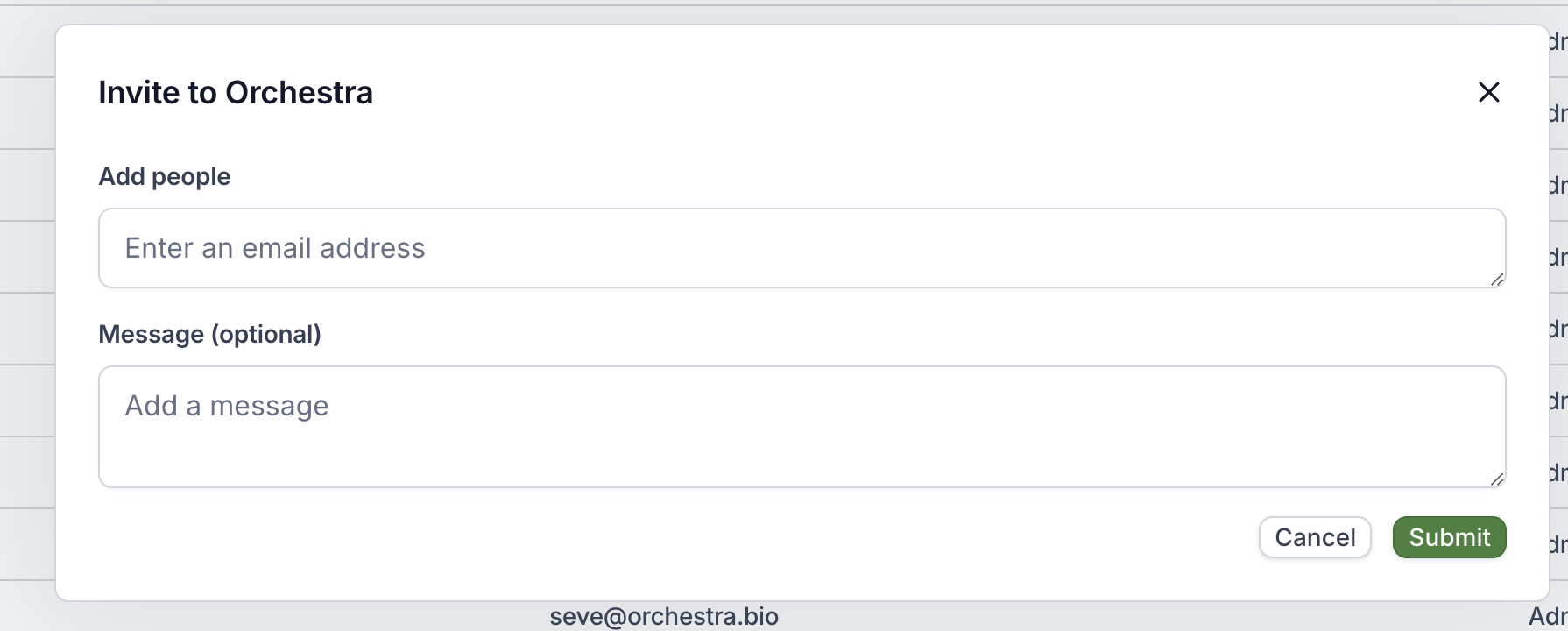
2. Click on the + button on the top right to invite a new user to the organization
* The email does not need to match your organization's domain
* This is useful for external collaborators, CROs, or partners who may need access to the Orchestra system.
3. The new user can follow the instructions from their email for next steps. They will be required to verify their email as part of the process.
 ## Deactivate a user
1. Go to your avatar on the bottom right > **Organization settings** > **Members** tab
2. Use the `...` button on the right side of the row > **Deactivate user**
## Change user role
Users with the **Admin** role can access the **Organization settings** page, which gives them access to the **Members**, **Tags**, and **Integrations** tabs.
1. Go to your avatar on the bottom right > **Organization settings** > **Members** tab
2. Use the `...` button on the right side of the row > **Change role**
## Deactivate a user
1. Go to your avatar on the bottom right > **Organization settings** > **Members** tab
2. Use the `...` button on the right side of the row > **Deactivate user**
## Change user role
Users with the **Admin** role can access the **Organization settings** page, which gives them access to the **Members**, **Tags**, and **Integrations** tabs.
1. Go to your avatar on the bottom right > **Organization settings** > **Members** tab
2. Use the `...` button on the right side of the row > **Change role**