> ## Documentation Index
> Fetch the complete documentation index at: https://docs.orchestra.bio/llms.txt
> Use this file to discover all available pages before exploring further.
# Teams integration
Create a feed of Orchestra updates in a Teams channel.
## Create the Orchestra integration channel
The Teams integration can be set up for **all notifications** or for an **individual program's notifications**. Set up the Orchestra integration channel accordingly - it can go under a Team that represents one program, or under a Team that represents the whole organization.
1. Navigate to the Team in Microsoft Teams where you would like to set up an activity feed of Orchestra
2. Create a new channel for the Orchestra integration by clicking the three dots next to your Team > **Add channel**
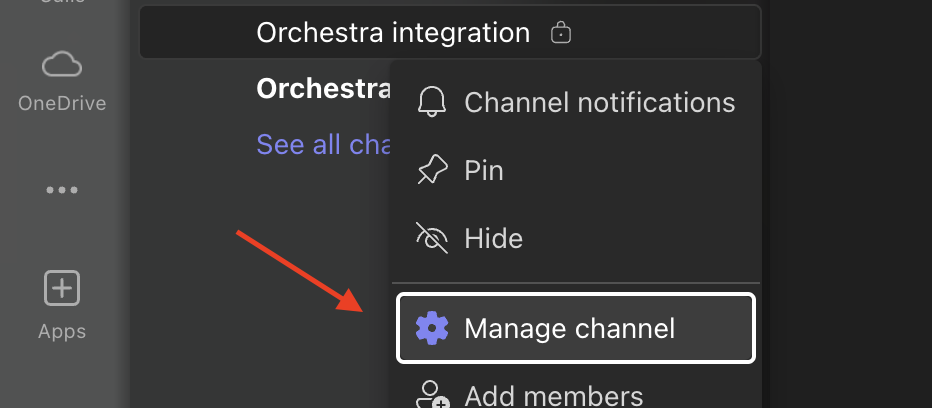
3. Click the three dots next to the channel > **Manage channel**
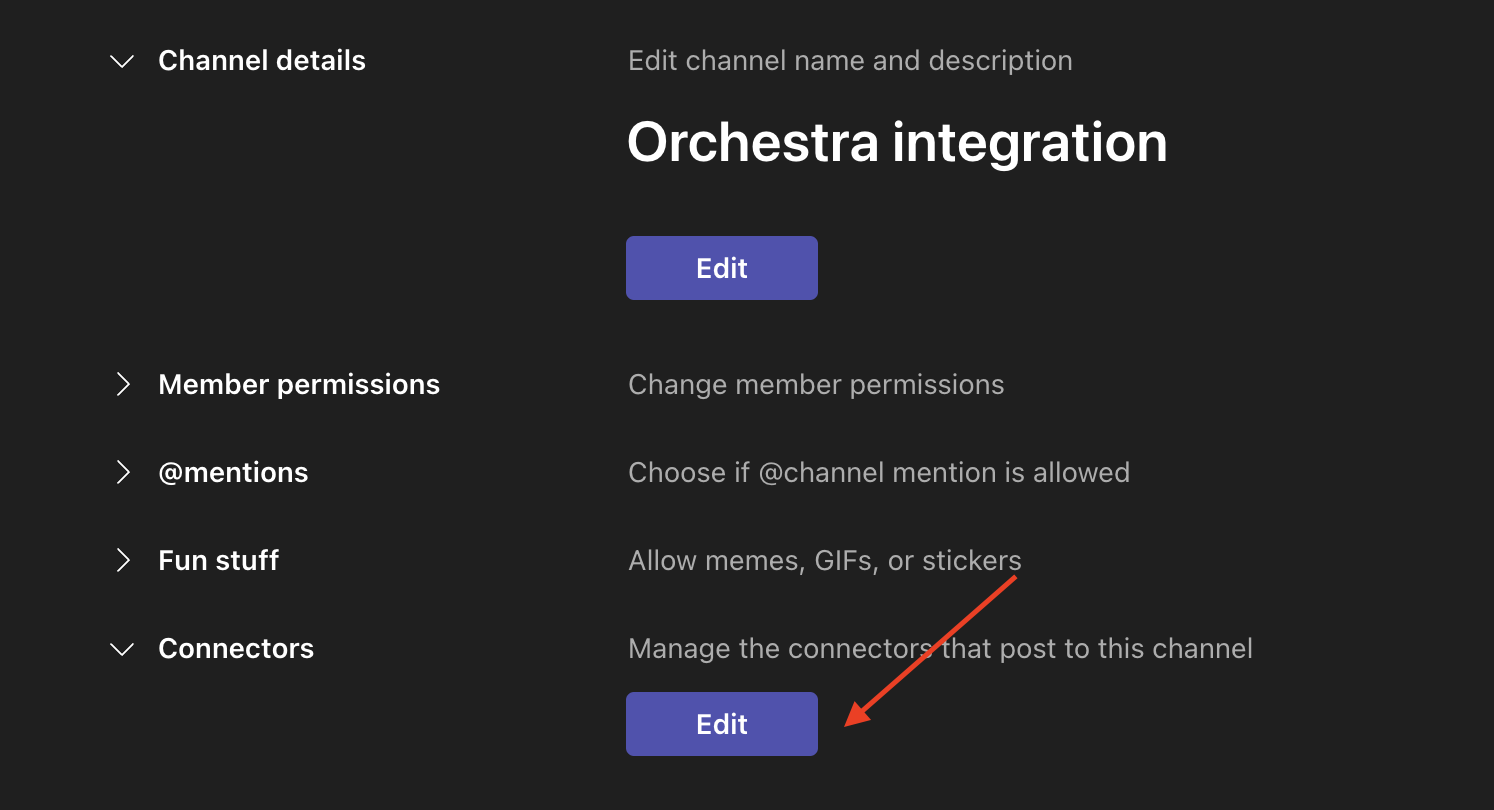
 4. Click on the **Settings** tab > open the **Connectors** section > **Edit**
 If the Microsoft Teams webstore does not load on this next step, try using the Teams webapp on Chrome instead.
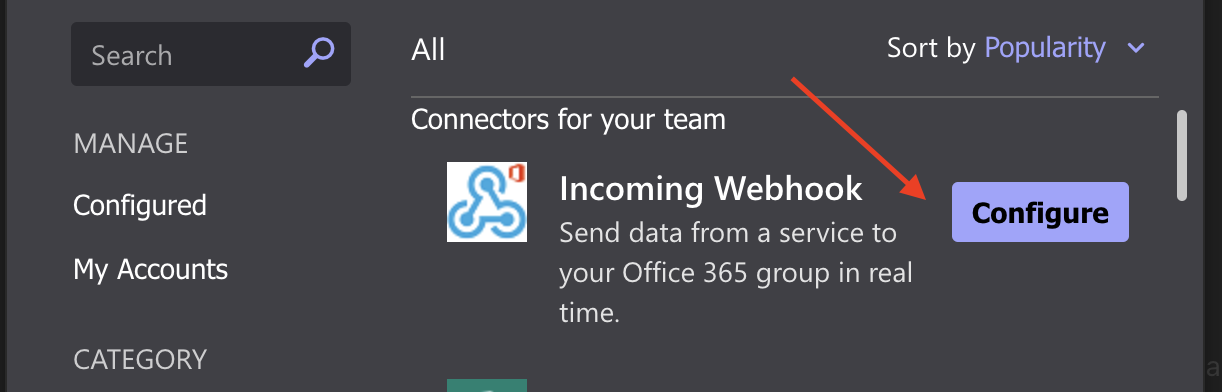
5. Click **Configure** next to Incoming Webhook
If the Microsoft Teams webstore does not load on this next step, try using the Teams webapp on Chrome instead.
5. Click **Configure** next to Incoming Webhook
 6. Name the integration "Orchestra integration" and click **Create**. Once the URL is generated, copy the link.
### Configure the channel for an individual program
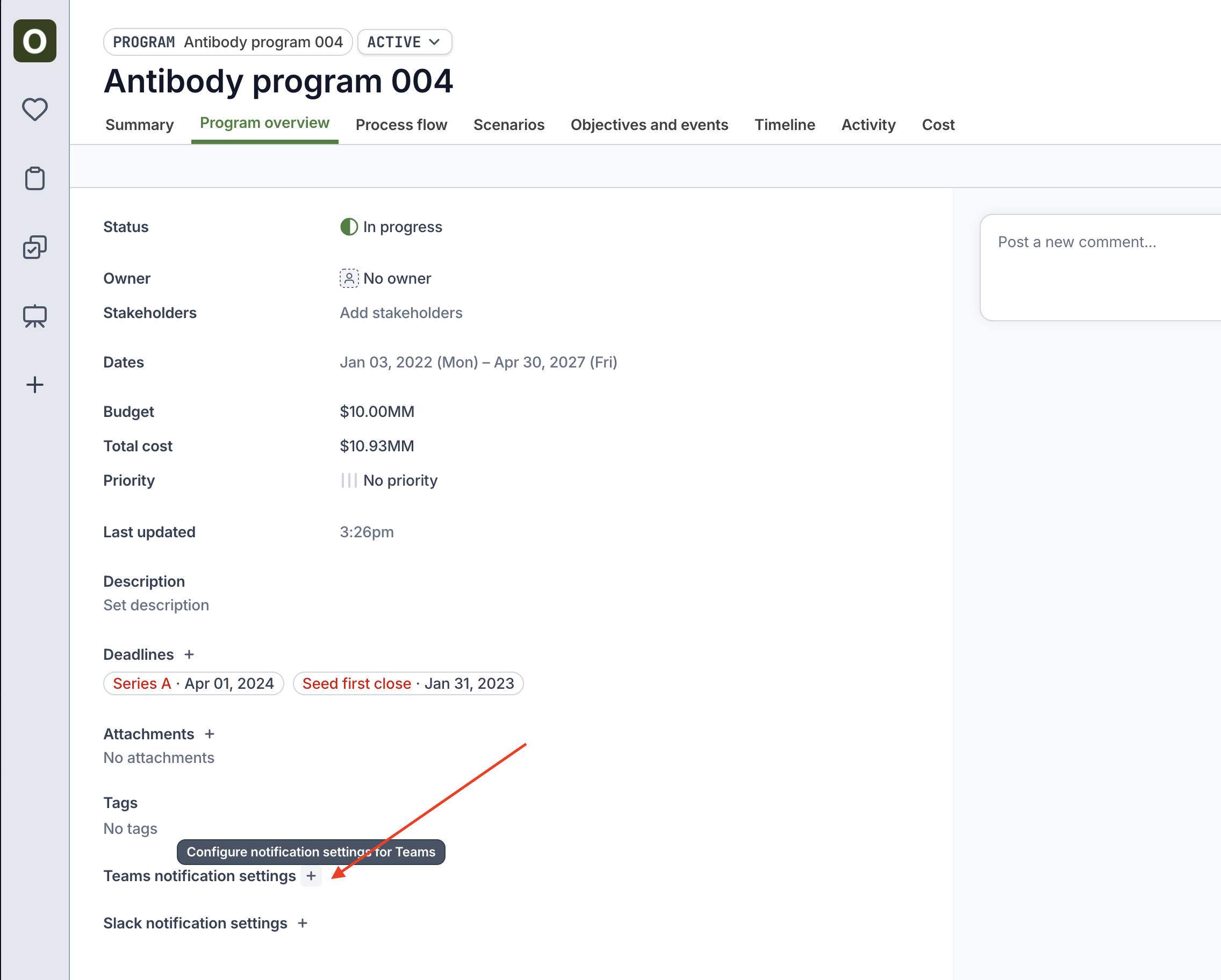
1. Go to the program's **Program Overview** tab and click the + next to **Teams notification settings**
2. Paste in the copied URL, turn on the toggle, and click Save.
6. Name the integration "Orchestra integration" and click **Create**. Once the URL is generated, copy the link.
### Configure the channel for an individual program
1. Go to the program's **Program Overview** tab and click the + next to **Teams notification settings**
2. Paste in the copied URL, turn on the toggle, and click Save.
 ### Configure the channel for all notifications
Only organization admins can set up the Teams integration for all notifications
1. Go to your **Organization Settings** (from your avatar)
2. Click the `...` on the Microsoft Teams row > **Update**. Paste in the copied URL.
### Configure the channel for all notifications
Only organization admins can set up the Teams integration for all notifications
1. Go to your **Organization Settings** (from your avatar)
2. Click the `...` on the Microsoft Teams row > **Update**. Paste in the copied URL.